Enabling and Configuring Modules
NFO modules are independent processing units. Each one processes the flows it is designed to receive and generates a separate stream of events. This page covers the mechanics of enabling, disabling, uploading, and configuring modules. For what each module does, see the Modules Guide. For a module's specific parameters, see that module's own page.
By default, NFO is preconfigured with two modules enabled: Network Conversations Monitor (10062) and Top Traffic Monitor (10067).
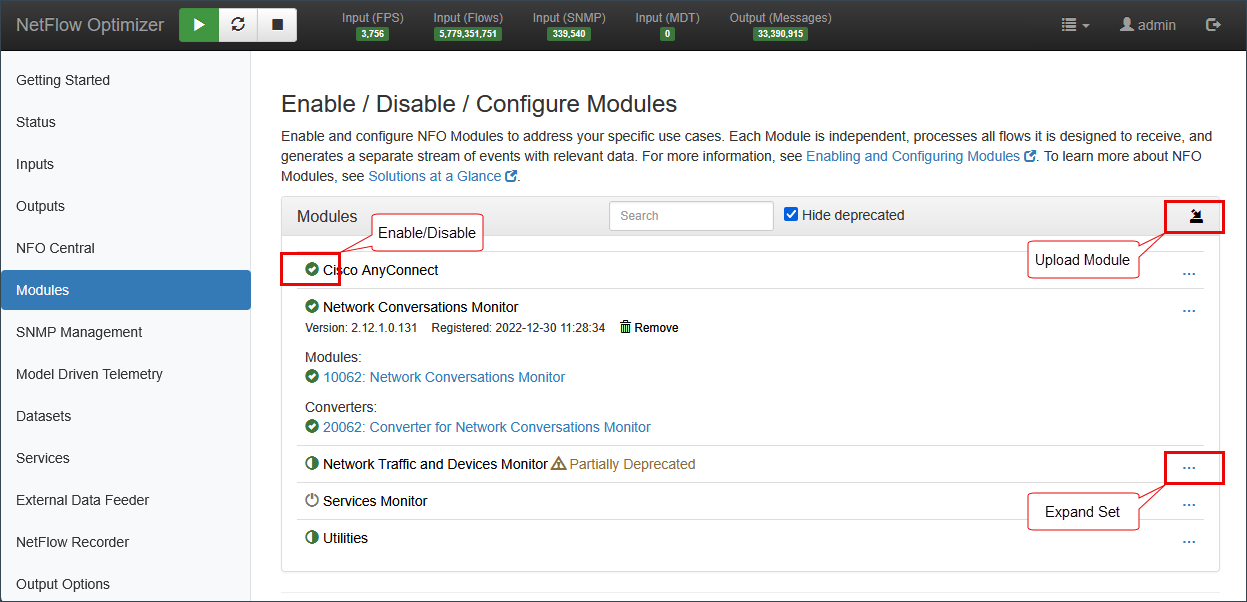
Enabling and Disabling Modules
Modules are organized into sets. Click the status icon next to a module or set name to enable or disable it (the Enable/Disable control marked in the image above).
The module list includes a Search box to find a module by name, and a Hide deprecated toggle to keep deprecated modules out of view. Modules that are being phased out are marked with a deprecation badge (for example, Partially Deprecated) so you can plan migrations.
Adding or Updating a Module
To add a new module or update an existing one, click the Upload Module button at the top right of the module list and select the module file.
Configuring Module Parameters
Click the Expand Set control on a set to reveal the modules and converters it contains, then click a module name (for example, 10062: Network Conversations Monitor) to open its parameter page.