Azure NSG and VNet Flow Logs Configuration
Prerequisites
Azure flow logs are generated by Virtual Networks (VNet) or Network Security Group (NSG). NSG can be assigned to a Virtual Network subnet or to an interface. Both VNet and NSG flow logs are stored within a storage account blob container: insights-logs-flowlogflowevent and insights-logs-networksecuritygroupflowevent.
NSG flow logs will be retired on 30 September 2027, therefore we recommend using VNet flow logs. In addition, there are two versions of NSG flow logs. If you decide to utilize NSG flow logs, we recommend using flow logs version 2, because it contains bytes and packets. If you use version 1, bytes and packets information will be missing.
For more information on VNet and NSG Flow Logs, visit https://learn.microsoft.com/en-us/azure/network-watcher/vnet-flow-logs-overview and https://docs.microsoft.com/en-us/azure/network-watcher/network-watcher-nsg-flow-logging-overview.
Azure flow log requires an Azure Storage account to store the flow logs.
To access and ingest NSG flow logs you need one of the following:
- Service principal identity
- System-assigned managed identity
Configuration Steps
- Configure VNet or NSG Flow Logs
- Configure EDFN Agent for ingestion of Azure Flow Logs
- Enable Network Conversations Module (10062) for Azure Flow Logs reporting
Azure Flow Logs Configuration
Network Watcher Creation
- Open the Azure portal
- Navigate to Network Watcher
- Create Network Watcher for a subscription and regions to be monitored:
- Click “+ Create” button
- Select a subscription form the dropdown
- Select one or several regions
- Click “Add” to create new Network Watcher
Register Insights Provider
- Open the Azure portal
- Navigate to Subscriptions
- From the list of subscriptions, select the subscription you want to enable the provider for
- Select Resource providers, under the Settings group in the left panel
- Confirm that the Status for the microsoft.insights provider is Registered. If the status is Unregistered, then select the provider and click on Register button
Storage Account Creation
Azure flow log data is written to an Azure Storage account. You must use StorageV2 (general purpose v2) account type.
- Open the Azure portal
- Navigate to Storage accounts
- Click “+ Create” button
- Select the subscription, the resource group, enter the storage account name and select the region. The storage account must be in the same region as the VNet or NSG
- Select Performance: General-purpose v2
- Select a Redundancy that matches your durability requirements
- Press “Review and create” button and then “Create”
Enable Azure Flow Logs
- Open the Azure portal
- Navigate to Network Watcher
- Select Flow logs under logs group in the left panel
- Click “+ Create” button
- Select the subscription you want to configure flow logs for
- Select Flow log type: Virtual network (recommended) or Network security group
- Select target resources: VNet, Subnet, network interface, or NSG
- Select the storage account you’ve previously created
- Set flow logs Retention (days) parameter
- Review and create flow log
Storage Queue Configuration
In the previous section you’ve created the Storage Account and configure VNet or NSG flow logs. Flow logs can be found here: Azure portal -> Storage Accounts -> select the account name -> Containers, under the Blob service group in the left panel -> insights-logs-flowlogflowevent or insights-logs-networksecuritygroupflowevent container.
Flow logs are written into a Blob Block resource. For each VM interface a separate blob is created. Blobs are rotated every hour, but blocks with NSG flow logs are committed more often. NFO doesn’t monitor a new block uploaded directly. You have to configure a Storage Queue in the same Storage account to receive events about a new block committed.
- Open the Azure portal
- Navigate to Storage accounts
- From the list of accounts, select the storage account you’ve created earlier for VNet or NSG Flow logs
- Create Storage Queue. Important: Azure flow logs container and queue must be in the same storage account
- Select Queues, under the Queue service group in the left panel
- For queue creation select “+ Queue” and enter the queue name
- Select “OK” to save the queue
- Then create the storage account event subscription:
- Select Events in the left panel and click on "+Event Subscription"
- EVENT SUBSCRIPTION DETAILS section. Enter the subscription name
- EVENT TYPES section. Filter to Event Types: Blob created
- ENDPOINT DETAILS section. Endpoint Type: Storage Queues
- ENDPOINT DETAILS section. Endpoint: Select an endpoint. Select the queue you’ve already created. The queue must be in the same storage account
- (Optionally) If the storage account is used not only for flow logs (contains containers other than
insights-logs-*), you have to configure filters - Navigate to the Filter section
- Select “Enable subject filtering” checkbox
- Enter Subject Begins With:
- For VNet flow logs: /blobServices/default/containers/insights-logs-flowlogflowevent/
- For NSG flow logs: /blobServices/default/containers/insights-logs-networksecuritygroupflowevent/
- Enter Subject Ends With: .json
- (Optionally) Navigate to “Additional Features” section and configure Retry Policies
- (Optionally) Navigate to “Delivery Properties” and configure Storage queue message TTL
- Choose “Create” to save the event subscription
After these configuration steps, when a new blob block with Azure flow logs is committed, a notification message is pushed into the Storage Queue. NFO receives this message, reads flow logs from the block and deletes the message.
Authentication and Access Control (IAM) Configuration
NFO requires access to the Azure Resource Manager and to the Storage Account for Flow Logs processing. There are two ways to configure this access.
- Using service principal identity - Use this option if your EDFN is installed on premises or outside of Azure. This method requires a
secret access key,application (client) ID,subscription ID, andtenant ID - Using system-assigned managed identity - Use this option if your EDFN is installed on an Azure Virtual Machine resource. This method does not require access credentials.
For more details, please visit https://docs.microsoft.com/en-us/azure/active-directory/managed-identities-azure-resources/overview
Service Principal Identity Authentication
An Azure service principal is an identity created for use with applications. The EDFN agent uses this service principal for Azure resources access. Do following steps for the service principal authentication.
- Open the Azure portal
- Navigate to Microsoft Entra ID and select App registrations under the Mange section in the left panel
- Select “+ New registration“
- Enter Name, for example, edfn-agent
- Select “Register” to save the application. You will be navigated to the application overview page
- Select “Certificates & secrets” in the left panel
- Select “+ New client secret” and enter a name for the secret
- Select “Save” and copy the secret key value into Microsoft Azure NSG Flow Logs input
Secret keyfield.
You will need following properties form the application overview page:
- client: Application (client) ID
- tenant: Directory (tenant) ID
- key: client secret string value
- subscription: navigate to Subscriptions and copy value from the Subscription ID column. This will be the default subscription
If you have other subscriptions you want to monitor you have to give a read access to all of them it as follows:
- Navigate to Subscriptions
- From the list of subscriptions, select the subscription to be configured
- Select Access control (IAM) in the left panel
- Select “+ Add” and choose Add role assignment
- In the “Role” tab, find and select Reader job function
- In the "Members" tab, leave unchanged the “Assign access to” (User, group, or service principal)
- Click “+ Select members”
- Enter the service principal name in the Search field (for example, edfn-agent). When the service principal appears in the results, select it
- Click “Review + assign”
Repeat these steps for each subscription to be monitored.
Storage Account Access for Service Principal Authentication
Even though EDFN may be authenticated with the “Storage account access key”, we recommend using Microsoft Entra ID authentication. The Virtual machine must have Storage Blob Data Reader and Storage Queue Data Message Processor roles to access storage account container and queue.
- Navigate to your storage account
- Select Access control (IAM) in the left panel
- Select “+ Add” and choose Add role assignment
- In the “Role” tab, find and select Storage Blob Data Reader job function role
- In the "Members" tab, leave unchanged the “Assign access to” (User, group, or service principal)
- Click “+ Select members”
- Enter the service principal name in the Search field (for example, edfn-agent). When the service principal appears in the results, select it
- Click “Review + assign”
- Repeat steps 3-8, on the step 4 select role Storage Queue Data Message Processor
After these steps the storage container and the storage queue are processed without an access key.
System-assigned Managed Identity Authentication
For enabling system-assigned managed identity on the EDFN installation VM read the following instruction: https://docs.microsoft.com/en-us/azure/active-directory/managed-identities-azure-resources/qs-configure-portal-windows-vm#enable-system-assigned-managed-identity-on-an-existing-vm
- Open the Azure portal
- Navigate to Virtual machines
- From the list of VMs, select the VM, where EDFN is installed
- Select Identity, under the Security group in the left panel
- Under the System assigned tab, Status, select On and then click Save
- Confirm enable the system assigned managed identity for the VM
After system-assigned managed identity is enabled, configure VM access to a subscription.
- Navigate to Subscriptions
- From the list of subscriptions, select the subscription to be configured
- Select Access control (IAM) in the left panel
- Select “+ Add” and choose Add role assignment
- In the “Role” tab, find and select Reader job function role
- In the “Members” tab, the “Assign access to” dropdown, choose Managed identity
- Click “+ Select members”
- In the “Subscription” dropdown, choose the subscription, where VM is placed
- Search and select the VM
- Click "Review + assign"
Repeat previous steps for each subscription to be monitored.
Storage Account Access for System-assigned Managed Identity Authentication
Even though EDFN may be authenticated with the “Storage account access key”, we recommend using AD authentication. The Virtual machine must have Storage Blob Data Reader and Storage Queue Data Message Processor roles to access storage account container and queue. Instruction how to configure managed identity access is available here: https://docs.microsoft.com/en-us/azure/active-directory/managed-identities-azure-resources/tutorial-linux-vm-access-storage#grant-your-vm-access-to-an-azure-storage-container.
- Navigate to your storage account
- Select Access control (IAM) in the left panel
- Select “+ Add” and choose Add role assignment
- In the “Role” dropdown, choose Storage Blob Data Reader
- In the “Assign access to” dropdown, choose Virtual Machine
- In the “Subscription” dropdown, choose the subscription, where VM is placed
- Search and select the VM
- Click “Save”
- Repeat steps 3-8, on the step 4 select role Storage Queue Data Message Processor
After these steps the storage container and the storage queue are processed without an access key.
Configure EDFN Agent
When you click on Microsoft Azure Flow Logs in NFO Inputs page you will be presented with the following configuration screen.
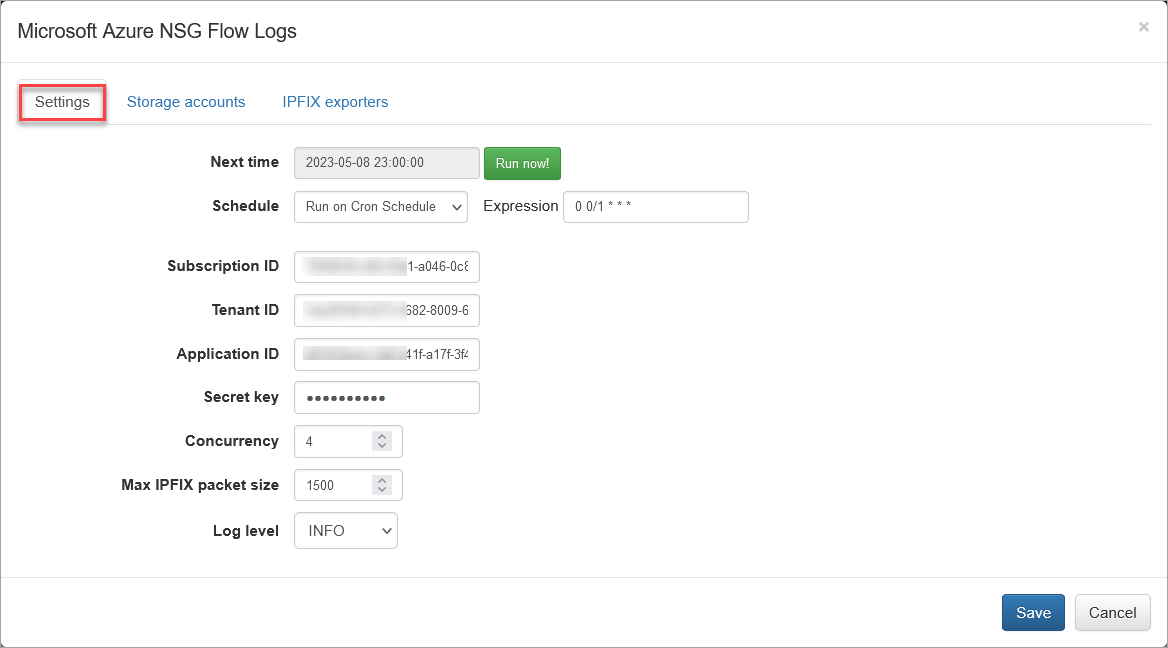
On this screen you can configure the following parameters:
Settings Tab
Cron Schedule
NFO Azure Flow Logs processing includes data enrichment with fields such as VM names, Subscription names, NSG names, Subnet names, Regions, etc. This information is updated on cron schedule set here.
Subscription ID
This is the default subscription ID. Open Azure portal, navigate to Subscriptions and copy value from the Subscription ID column. There are two alternative ways to access your Azure directory where Flow Logs are configured: service principal or system-assigned managed identity. Set subscription ID, if you use service principal to access your Azure environments. If you use system-assigned managed identity, leave it blank.
Tenant ID
Directory (tenant) ID. If you use system-assigned managed identity, leave it blank. If you use service principal identity, open Azure portal > navigate to Microsoft Entra ID > select App Registrations > select application created before, e.g. edfn-agent > copy Directory (tenant) ID from the Overview page.
Application ID
Application (client) ID. If you use system-assigned managed identity, leave it blank. If you use service principal identity, open Azure portal > navigate to Microsoft Entra ID > select App Registrations > select application created before, e.g. edfn-agent > copy Application (client) ID from the Overview page.
Secret key
Application (client) secret key. Paste secret key created before. If you use system-assigned managed identity, leave it blank. If you haven't created a client secret yet, open Azure portal > navigate to Microsoft Entra ID > select App Registrations > select application created before, e.g. edfn-agent > select Certificates & secrets > click on Client secrets tab and then create a new one.
Concurrency
The number of parallel message processors. Increase this value when blobs are consumed too slowly. Decrease this value, when NFO Server drops some input flows.
Max IPFIX Packet Size
This is NFO internal parameter – maximum IPFIX UDP message size. It is expected to be less or equals to MTU. When NFO and EDFN are installed on the same host, the parameter may be increased up to 3900 to increase processing speed.
Azure default URLs can be overwritten. Add $EDFN_HOME/conf/azure.properties file with the following content:
managementURI=https://management.core.windows.net/
baseURL=https://management.azure.com/
authURL=https://login.microsoftonline.com/
graphURL=https://graph.windows.net/
storageEndpointSuffix=.core.windows.net
Storage Accounts Tab
Open Storage accounts section to authorize access to Flow logs in Azure Storage.
Storage account name and Queue name are required. Access key is optional if you use Microsoft Entra ID authentication (service principal or system-assigned managed identity) for storage account access.
The storage account has two access keys, please use the first one. The second key can be used during first key regeneration. Access keys are available on Storage account page -> Access keys in the left panel.
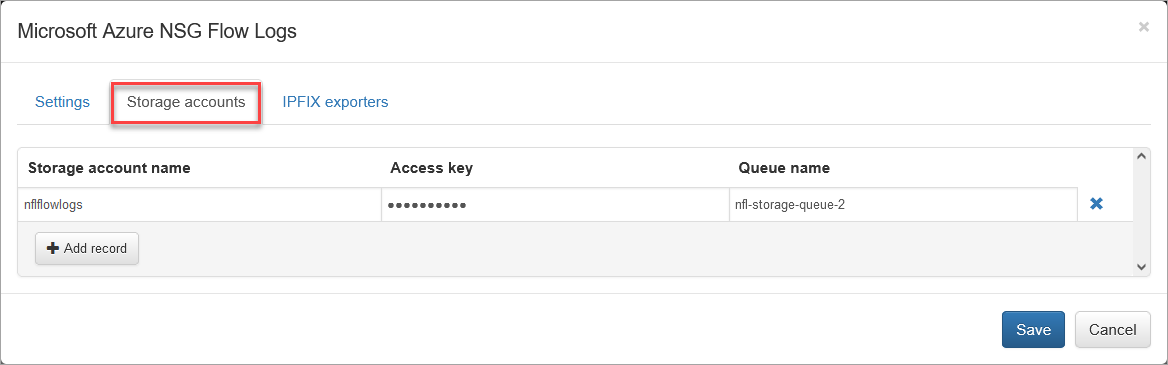
Enter Storage account name, Access key, if needed, and Queue name.
Press "Save".
Verify Azure Access and Set IPFIX Exporters
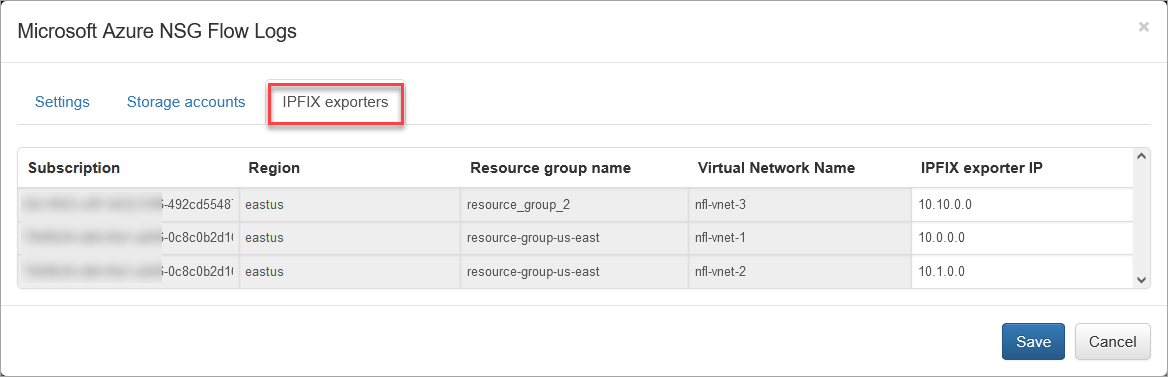
Press the “Run now” button to retrieve the list of subscriptions and associated virtual network names (IPFIX exporters section). This action will close the input configuration. It may take from several seconds to a few minutes to retrieve the list.
Open the IPFIX Exporters section to review and assign an exporter IP to each Virtual Network Name. This IP will be reported as the exp_ip field in syslog events, for compatibility with physical network device flow reporting in visualizations and alerting.
Network Conversations Module Output Fields (Module 10062)
The table below maps native Azure VNet/NSG Flow Logs fields to their corresponding output field names in the Network Conversations Monitor (Module 10062). For the complete Module 10062 field reference, see Network Conversations Monitor.
| Azure Flow Logs Native Field | Module 10062 Output Field | Description |
|---|---|---|
nfc_id | Message type identifier (nfc_id=20062) | |
flow_type | Type of flow (Azure) | |
exp_ip | Virtual network router IPv4 address, assigned per-VNet in the EDFN agent | |
exp_name | VNet or NSG flow exporter name | |
| Source IP | src_ip | Source IPv4 or IPv6 address |
| Source port | src_port | Source port number |
| Destination IP | dest_ip | Destination IPv4 or IPv6 address |
| Destination port | dest_port | Destination port number |
| Protocol | protocol | IANA protocol number |
| Traffic decision | action | Flow action. NFO normalizes to: A (Allowed) or R (Rejected) |
| Traffic flow | direction | Session origin: inbound, outbound, internal, or unknown |
| Flow State | state | Conversation lifecycle state: B (Begin), C (Continuing), E (End) |
| Packets sent | packets_in | Packets from source to destination since the last update |
| Bytes sent | bytes_in | Bytes from source to destination since the last update (includes header and payload) |
| Packets received | packets_out | Packets from destination to source since the last update |
| Bytes received | bytes_out | Bytes from destination to source since the last update (includes header and payload) |
flow_start_time | Start time of the first consolidated flow | |
flow_end_time | End time of the last consolidated flow | |
flow_count | Number of consolidated flows reported in this event | |
t_int | Observation time interval (msec) | |
| mac | src_mac | Source MAC address. Present for directly connected devices only |
| mac | dest_mac | Destination MAC address. Present for directly connected devices only |
src_host | Source host name. Present when FQDN resolution is enabled | |
dest_host | Destination host name. Present when FQDN resolution is enabled | |
azure_src_subs_id | Source subscription ID | |
azure_src_subs_name | Source subscription name | |
src_vm_name | Source VM name | |
azure_src_nsg_name | Source NSG name | |
azure_src_vnet_name | Source virtual network name | |
src_subnet_name | Source subnet name | |
azure_src_res_grp_name | Source resource group name | |
src_cloud_region | Source Azure cloud region (e.g. eastus, westeurope) | |
src_cloud_service | Source cloud service | |
azure_dest_subs_id | Destination subscription ID | |
azure_dest_subs_name | Destination subscription name | |
dest_vm_name | Destination VM name | |
azure_dest_nsg_name | Destination NSG name | |
azure_dest_vnet_name | Destination virtual network name | |
dest_subnet_name | Destination subnet name | |
azure_dest_res_grp_name | Destination resource group name | |
dest_cloud_region | Destination Azure cloud region | |
dest_cloud_service | Destination cloud service | |
src_asn | Source BGP Autonomous System Number | |
src_cc | Source country code (GeoIP-derived, ISO 3166-1 alpha-2) | |
src_region | Source region (GeoIP-derived, city level) | |
src_city | Source city (GeoIP-derived) | |
src_lon | Source longitude (GeoIP-derived) | |
src_lat | Source latitude (GeoIP-derived) | |
dest_asn | Destination BGP Autonomous System Number | |
dest_cc | Destination country code (GeoIP-derived) | |
dest_region | Destination region (GeoIP-derived, city level) | |
dest_city | Destination city (GeoIP-derived) | |
dest_lon | Destination longitude (GeoIP-derived) | |
dest_lat | Destination latitude (GeoIP-derived) | |
threat_list_name | Name of the matched cybersecurity threat list | |
reputation | Reputation score from the threat list | |
idp | Identity provider for the user | |
username | Username from identity enrichment (AD, Entra ID, Okta) | |
app_id | Application ID | |
app_name | Application name | |
app_desc | Application description |
The following native Azure Flow Logs fields are not mapped by Module 10062:
| Azure Flow Logs Native Field | Notes |
|---|---|
| time | UTC timestamp when the event was logged — not mapped |
| Time stamp | UNIX epoch flow timestamp — not mapped (use flow_start_time / flow_end_time instead) |
| systemId | System ID of the network security group — not mapped |
| category | Always NetworkSecurityGroupFlowEvent — not mapped |
| resourceid | Resource ID of the network security group — not mapped |
| operationName | Always NetworkSecurityGroupFlowEvents — not mapped |
| Version | Flow log schema version — not mapped |
| rule | NSG rule matched by the flow — not mapped |
| mac | MAC address of the NIC where the flow was collected — mapped to src_mac / dest_mac for directly connected devices only |