AWS VPC Flow Logs Configuration
Prerequisites
AWS VPC Flow Logs are generated by an ENI (network interface) in your VPC, whether it is attached to an EC2 instance, a service, or a task in AWS Fargate.
NFO and EDFN support ingestion of VPC Flow Logs from both S3 and CloudWatch. A single NFO instance can ingest VPC Flow Logs from S3 for certain VPCs while simultaneously receiving VPC Flow Logs from CloudWatch for other VPCs in your AWS environment.
There are two methods to authenticate EDFN with AWS:
- Using IAM Roles: Use this option if your NFO/EDFN is installed on an EC2 instance.
- Using AWS User: Use this option if your NFO/EDFN is installed on-premises or outside of AWS.
Configuration Steps
- Configure AWS VPC Flow Logs
- Configure AWS User and Policy
- Configure EDFN Agent for ingestion of AWS VPC Flow Logs
- Enable Network Conversations Module (10062) for AWS VPC Flow Logs reporting
Configure AWS VPC Flow Logs
To publish VPC Flow Logs to S3 visit: https://docs.aws.amazon.com/vpc/latest/userguide/flow-logs-s3.html.
To publish VPC Flow Logs to CloudWatch Logs visit: https://docs.aws.amazon.com/vpc/latest/userguide/flow-logs-cwl.html.
Kinesis Stream Configuration
When VPC Flow logs are stored in the CloudWatch Logs, NFO can receive them using CWL API, or, subscribe to a Kinesis stream.
There are two ways to configure logs publishing to a Kinesis stream:
- use CloudFormation template or
- manually create required resources using Amazon console and CLI
CloudFormation
A CloudWatch Logs group and Kinesis stream can be created per region using a CloudFormation template. Download the template from:
https://nfo-ami.s3.us-west-2.amazonaws.com/2.10.0/NFOCwlKinesisSubscription.template
Open the Amazon CloudFormation console and create a stack using these instructions.
During the stack creation, the following parameters may be changed:
- CloudWatch Logs group: Logs retention period in days (default 30 days)
- Kinesis stream: Data retention period in hours (default 24 hours, min 24 hours, max 168 hours)
- Kinesis stream: Number of shards (default 1)
The CloudFormation template automatically creates the following resources:
NFLVpcFlowLogRole_<stack_name>_<region_id>– the IAM role for publishing Flow Logs to CloudWatch Logs.NFLCwlToKinesisRole_<stack_name>_<region_id>– the IAM role for publishing Flow logs from CloudWatch Logs group to a Kinesis Stream.NFLVpcFlowLogGroup_<stack_name>_<region_id>– the CloudWatch Logs group for Flow Logs.NFLVpcKinesisStream_<stack_name>_<region_id>– Kinesis Stream.- NFLVpcFlowLogsSubscriptionFilter – the CloudWatch Logs group NFLVpcFlowLogGroup subscription filter. All Flow Logs are published to the Kinesis Stream NFLVpcKinesisStream.
Where <stack_name> is substituted as a CloudFormation stack name and <region_id> as a current region ID.
After that you only have to create VPC Flow Logs for your VPCs, subnets, or network interfaces (see https://docs.aws.amazon.com/vpc/latest/userguide/flow-logs-cwl.html#flow-logs-cwl-create-flow-log for details).
Select NFLVpcFlowLogGroup_<stack_name>_<region_id> as the destination and NFLVpcFlowLogRole_<stack_name>_<region_id> as the IAM role.
Amazon Console
If the CloudFormation template isn’t suitable for you, all these resources can be created using the Amazon console or CLI. For example, you may want to collect Flow Logs from several Amazon accounts in one Kinesis Stream and so on.
-
Create an IAM role for publishing Flow Logs to CloudWatch Logs (see https://docs.aws.amazon.com/vpc/latest/userguide/flow-logs-cwl.html#flow-logs-iam for details).
-
Create a Flow Log that publishes to CloudWatch Logs (see https://docs.aws.amazon.com/vpc/latest/userguide/flow-logs-cwl.html#flow-logs-cwl-create-flow-log for details).
-
Configure Kinesis Stream.
The EDFN agent is working as a Kinesis steam consumer, and it can be with or without Enhanced Fan-Out, see Reading Data from Amazon Kinesis Data Streams https://docs.aws.amazon.com/streams/latest/dev/building-consumers.html for details.
If you decide not to use Enhanced fan-out, you may deregister the consumer
EDFN_KINESIS_VPC_FLOW_LOG_CONSUMERmanually. To do this, please navigate to AWS console - Services - Kinesis - Data Streams, then select your stream(s), open the Enhanced fan-out tab, and deregisterEDFN_*consumer.Also, if you decide to use CloudWatch Logs API instead of Kinesis stream consumer, you may remove unused streams too.
-
Create CloudWatch Logs Kinesis subscription filter. After that CloudWatch log group will publish VPC Flow Logs to the Kinesis stream.
The subscription can be created using CLI (see Subscription Filters with Kinesis https://docs.aws.amazon.com/AmazonCloudWatch/latest/logs/SubscriptionFilters.html#DestinationKinesisExample for details). On step 7 the filter-pattern parameter may be left "" (empty string). To create the subscription using AWS console:
- Create IAM Role with the following policy:
{"Version": "2012-10-17","Statement": [{"Action": "kinesis:PutRecord","Resource": "kinesis-stream-arn","Effect": "Allow"},{"Action": "iam:PassRole","Resource": "iam-role-arn","Effect": "Allow"}]}- Navigate CloudWatch Log groups and select log group for streaming.
- Open "Subscription filters" tab and select "Create Kinesis subscription filter".
- On the opened form enter Kinesis stream, IAM Role, filter name and you may select Log format "Amazon VPC Flow Logs"
- Click "Start streaming" button
Enhanced fan-out consumers may result in additional charges from AWS.
S3 and SQS Configuration
VPC Flow logs may be sent to an S3 bucket. For more information visit Publishing Flow Logs to Amazon S3 https://docs.aws.amazon.com/vpc/latest/userguide/flow-logs-s3.html. The EDFN agent doesn’t monitor the S3 bucket for new object creation directly. It assumes that the S3 bucket sends “s3:ObjectCreated:*” notifications to the Simple Queue Service (SQS).
There are two ways to configure S3 bucket and SQS:
- use CloudFormation template
- manually create required resources using Amazon console or CLI
CloudFormation
All required resources may be created using Amazon CloudFormation template. The CloudFormation template is available here: https://nfo-ami.s3.us-west-2.amazonaws.com/2.10.0/nfo_aws_s3_sqs_template.json
Create a stack using the template. Open Amazon CloudFormation console and create the stack following these instructions: https://docs.aws.amazon.com/AWSCloudFormation/latest/UserGuide/cfn-console-create-stack.html
- Navigate to CloudFormation, select Stacks in the left panel.
- Click “Create stack” and select “With new resources (standard).
- Enter Amazon S3 URL or upload the template.
- Enter the stack name.
- Enter custom parameters:
- Policy name – IAM policy name for EDFN agent, this is the optional parameter and may be left empty. For example, when S3/SQS is configured in several regions you need to create a single policy.
- Role name – IAM role name for EC2 instance where NFO/EDFN is installed. This is also the optional parameter and may be left empty.
- S3 bucket name – name of the bucket to which VPC flow logs will be published.
- SQS name – name of the queue to which bucket object creation events will be published.
- Click next.
- Validate options on the opened page and then click next.
- Review and submit.
After these steps CloudFormation creates from 2 to 4 resources: S3 bucket, SQS queue, IAM policy, and IAM role. IAM policy and role have deletion policy RetainExceptOnCreate, so please remove them manually when you will not need them anymore. S3 bucket also cannot be removed if it is not empty.
Finally, you only have to create VPC Flow Logs for your VPCs, subnets, or network interfaces (see https://docs.aws.amazon.com/vpc/latest/userguide/flow-logs-s3.html for details) and enter S3 bucket ARN as the destination. ARN can be copied from the bucket Properties page or it is also available on the Output tab of the stack.
Amazon Console
If the CloudFormation template doesn't work for you, you have the option to create all these resources using the Amazon console or CLI.
EDFN agent expects that the queue account has access to “s3:GetObject” action. The S3 bucket region and SQS region must be the same.
To configure SQS:
- Sign in to the Amazon SQS console https://console.aws.amazon.com/sqs/.
- Change the region to the S3 bucket’s region.
- Choose Create New Queue.
- Enter the Queue name.
- Leave Standard queue selected.
- Choose Configure Queue.
- Change Receive Message Wait Time from 0 to 20 seconds.
- Choose Create Queue.
When the queue is created, add permission to the queue allows the S3 bucket to send messages to it:
{
 "Version": "2012-10-17",
 "Id": "QUEUE-PERMISSION-POLICY-ID",
 "Statement": [
  {
   "Sid": "STATEMENT-ID",
   "Effect": "Allow",
   "Principal": {
     "AWS": "*"
   },
   "Action": [
    "SQS:SendMessage"
   ],
   "Resource": "arn:aws:sqs:REGION:ACCOUNT-ID:QUEUE-NAME",
   "Condition": {
      "ArnLike": { "aws:SourceArn": "arn:aws:s3:*:*:BUCKET-NAME" }
   }
  }
 ]
}
When the queue permissions are configured, add S3 bucket notifications:
- Sign in to the Amazon S3 console https://console.aws.amazon.com/s3/.
- Select the bucket and choose Properties.
- Choose events and press Add notification.
- Enter the event name.
- In the Events section, select All object create events.
- Optionally enter prefix and suffix. For example, suffix may be “.log.gz”.
- Choose the SQS destination and select your queue name or enter the queue ARN. The SQS and bucket region must be the same.
- Choose Save.
Configure AWS User and Policy
You have two choices to configure EDFN Agent to access AWS and ingest VPC Flow Logs: using IAM Role or using AWS account. In both cases you need to create an AWS Permissions Policy - see below.
Using IAM Roles
Use this option if your NFO/EDFN is installed on an EC2 instance. Make sure that an appropriate IAM role is attached to the EC2 instance running EDFN.
The AWS Credentials tab must be empty when using IAM role authentication.
Using AWS User
Use this option if your NFO/EDFN is installed on premises or outside of your AWS cloud. This method requires an access key, a secret access key and optionally default region.
AWS Permissions Policy
Create an IAM Policy to allow the EDFN Agent to access AWS resources. The policy can be created automatically when the CloudFormation template is used for S3/SQS configuration. To create such a policy, open the IAM console, navigate to the Policies page and press the Create Policy button. Then select the JSON tab and insert the following policy:
{
    "Version": "2012-10-17",
    "Statement": [
        {
            "Sid": "EdfnMinPermissions",
            "Effect": "Allow",
            "Action": [
                "ec2:DescribeRegions",
                "ec2:DescribeInstances",
                "ec2:DescribeFlowLogs",
                "ec2:DescribeNetworkInterfaces",
                "ec2:DescribeVpcs",
                "ec2:DescribeNatGateways",
                "ec2:DescribeVpcEndpoints",
                "ec2:DescribeRouteTables",
                "ec2:DescribeVpcPeeringConnections",
                "ec2:DescribeTransitGatewayAttachments",
                "ec2:SearchTransitGatewayRoutes",
                "logs:DescribeSubscriptionFilters",
                "logs:GetLogEvents",
                "logs:DescribeLogStreams"
            ],
            "Resource": "*"
        },
        {
            "Sid": "S3Permissions",
            "Effect": "Allow",
            "Action": [
                "s3:GetBucketLocation",
                "s3:GetBucketNotification",
                "s3:GetObject",
                "sqs:GetQueueAttributes",
                "sqs:GetQueueUrl",
                "sqs:ChangeMessageVisibility*",
                "sqs:DeleteMessage*",
                "sqs:ReceiveMessage"
            ],
            "Resource": "*"
        },
        {
            "Sid": "KCLPermissions",
            "Effect": "Allow",
            "Action": [
                "cloudwatch:PutMetricData",
                "dynamodb:CreateTable",
                "dynamodb:DescribeTable",
                "dynamodb:GetItem",
                "dynamodb:PutItem",
                "dynamodb:DeleteItem",
                "dynamodb:UpdateItem",
                "dynamodb:Scan",
                "kinesis:GetRecords",
                "kinesis:GetShardIterator",
                "kinesis:ListShards",
                "kinesis:ListStreamConsumers",
                "kinesis:SubscribeToShard",
                "kinesis:DescribeStream*",
                "kinesis:RegisterStreamConsumer"
            ],
            "Resource": "*"
        }
    ]
}
IAM Roles Configuration
When EDFN is installed on the EC2 instance, AWS access for IAM role configuration (the role can be created automatically when the CloudFormation template is used for S3/SQS configuration) can be configured using the following steps:
- Open the IAM console https://console.aws.amazon.com/iam/home.
- In the navigation pane, choose Roles, then Create New Role.
- On the Select Role Type page, under AWS Service Roles, choose Amazon EC2.
- On the Permissions page, choose the already created policy EdfnAgentPolicy from the policy list or create a new one with permissions from the previous section, then choose Next Step.
- Enter a name for the role, and then select Next Step.
- On the Review page, choose Create Role.
- Launch an Amazon EC2 instance with the IAM role that you’ve created previously:
- Open the Amazon EC2 console
- Go to the Instances page
- Select the instance, then Actions, Instance Settings, and Attach/Replace IAM Role.
NFO may collect flow logs from different accounts using the “Switch Role” action. For detailed information, visit Delegate Access Across AWS Accounts Using IAM Roles https://docs.aws.amazon.com/IAM/latest/UserGuide/tutorial_cross-account-with-roles.html. The EC2 Instance assumes the IAM role from another account and thus has access to resources in this account. The assumed role must have permissions from the EdfnAgentPolicy policy.
For example, if your NFO is installed in the account 111111111111 and the second account is 999999999999, access delegation may be configured using the following steps for account 999999999999:
- Open the IAM console: https://console.aws.amazon.com/iam/home
- In the navigation pane on the left, choose Roles and then choose Create role.
- Choose the Another AWS account role type.
- For Account ID, type first the account ID: 111111111111
- Optionally type External ID (must be unique across assumed accounts) or leave it blank.
- Choose Next: Permissions, to set the permissions that will be associated with the role.
- Select EdfnAgentPolicy.
- Then choose Next: Tags.
- Choose Next: Review and type the role name.
- After reviewing the role, choose Create role.
- Open the just created role and copy the role ARN.
After that, configure the EC2 Instance Role permission, for account 111111111111 by doing the following steps:
-
Open the IAM console: https://console.aws.amazon.com/iam/home
-
In the navigation pane on the left, choose Roles and then choose your EC2 Instance role.
-
Choose the Permissions tab and click + Add inline policy.
-
Insert the following JSON policy (don’t forget to replace role ARN):
-
Choose Review policy and then type the policy name.
{"Version": "2012-10-17","Statement": {"Effect": "Allow","Action": "sts:AssumeRole","Resource": "arn:aws:iam::999999999999:role/YourRoleName"}} -
After reviewing the policy, choose Create policy.
After that, the EC2 instance role in account 111111111111 has access to resources in account 999999999999. Add the assumed role ARN, and optionally the external ID, to the EDFN agent's IAM Roles configuration list.
IAM User Configuration
Use this method if your AWS environment is accessed using an IAM user. Perform the following steps:
- Open AWS console
- Navigate to Identity and Access Management (IAM)
- Click Users in the left panel
- Click
Create user - Enter user name, for instance,
edfn-agent - Select
Attach policies directly - Find and select policy created in the section
AWS Permissions Policy - Click next to review and finally save the user
Then you need to open the user and generate secret access key for NFO API requests. Please perform the following steps:
- Open created user
edfn-agent - Click
Security credentialstab - On
Access keyspanel clickCreate access key - Select
Otheruse case and click next - Press
Create access key - Copy access key and Secret access key, you need these keys for AWS input configuration (via EDFN Agent)
Configure EDFN Agent
When you click on Amazon VPC Flow Logs in NFO Input summary panel you will be presented with the following configuration screen.
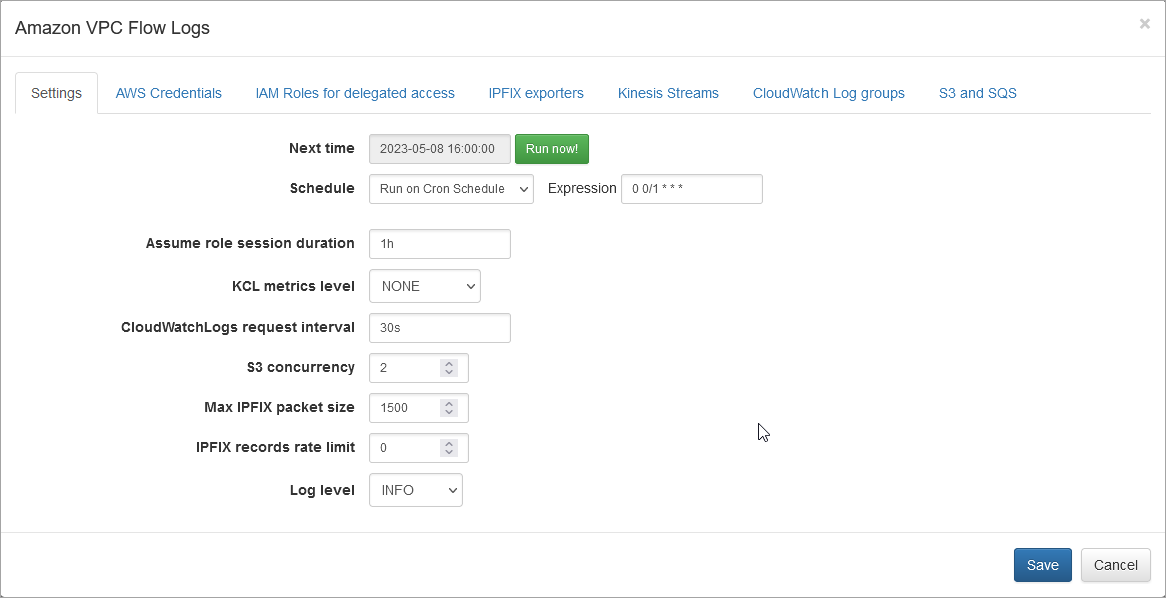
On this screen you can configure the following parameters:
Settings Tab
Cron Schedule
NFO AWS VPC Flow Logs processing includes data enrichment with fields such as EC2 instance names, VPC names, Regions, Services, etc. This information is updated on cron schedule set here.
Assume Role Session Duration
Set this parameter is you use IAM Role method to access your AWS environment. The EDFN agent uses temporary credentials for AWS access. By default, the AWS temporary session has a one hour duration. If all delegated roles have a longer or shorter session duration, you can set this parameter value from 15 minutes to 12 hours.
KCL Metrics Level
Set this parameter (Kinesis Client Library metrics level) to SUMMARY or DETAILED to investigate Kinesis Stream processing problems. For more information, visit Monitoring the Kinesis Client Library with Amazon CloudWatch (https://docs.aws.amazon.com/streams/latest/dev/monitoring-with-kcl.html).
CloudWatch Logs Request Interval
By default, VPC Flow Logs are requested every 30 seconds. Set this parameter to a frequency you want. Valid values are from 1 second to 1 day.
S3 Concurrency
This parameter is used when VPC Flow Logs are ingested from S3. It may be increased (default = 2), when S3 objects are processed too slowly. This can be verified in your AWS on queue monitoring panel (SQS console – select queue – choose Monitoring tab).
Max IPFIX Packet Size
This is NFO internal parameter – maximum IPFIX UDP message size. It is expected to be less or equals to MTU. When NFO and EDFN are installed on the same host, the parameter may be increased up to 3900 to increase processing speed.
IPFIX Records Rate Limit
This is NFO internal parameter – maximum IPFIX records per second. Default value 0 (means unlimited). If you see NFO server dropped messages (NetFlow Optimizer -> Status), this parameter could be set to another value, for example, 10000 records per second.
Set Access to your AWS Accounts
There are two alternative ways to access your AWS accounts where VPC Flow Logs are configured.
1. AWS Credentials Tab
Use this method if you have a list of independent AWS accounts. The EDFN Agent expects that each account has only one profile. On "AWS Credentials" tab add a row for each account:
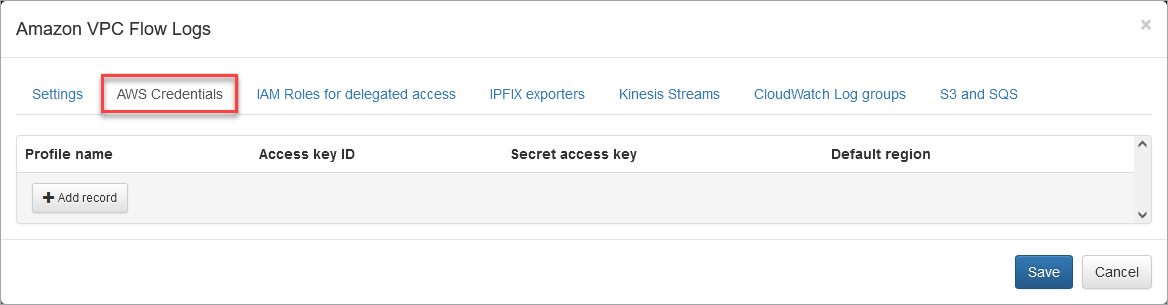
Access key ID and Secret access key are mandatory.
These credentials are available here: AWS console > IAM > Users > select User name > Security credentials tab. "Profile name" and "Default region" are optional.
The EDFN agent monitors all available regions to gather information about your EC2 instances and VPCs. To retrieve the account ID and list of available regions, the agent makes API calls using “Default region”. If it isn't provided, "us-east-1" is used.
2. IAM Role Tab
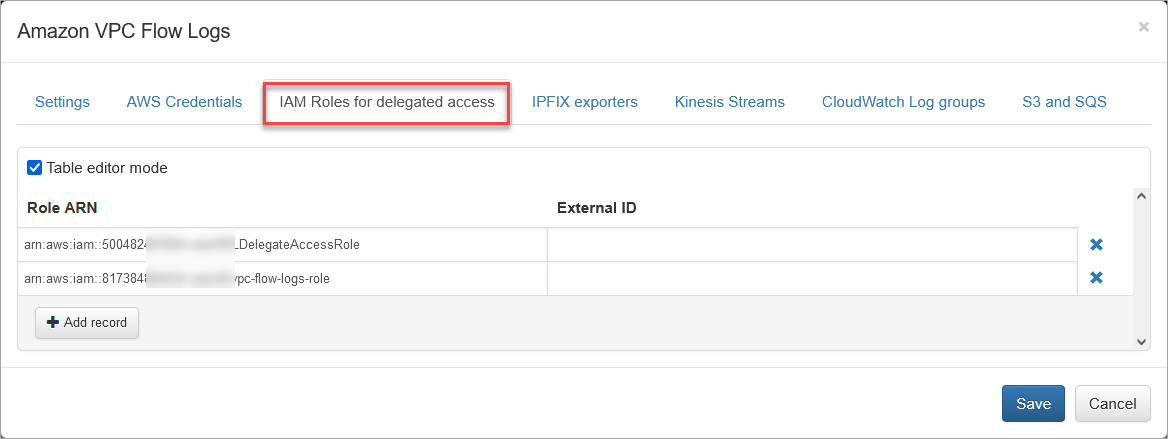
Use this method if you create IAM Role to delegate access across AWS accounts. See https://docs.aws.amazon.com/IAM/latest/UserGuide/tutorial_cross-account-with-roles.html for details.
Create a list of your ARNs and optionally External IDs as follows:
arn:aws:iam::999999999999:role/Role1,
arn:aws:iam::999999999998:role/Role1,
arn:aws:iam::999999999997:role/Role2,externalID-2
and enter it here:
Do not enter ARN assigned to NFO instance!
Verify AWS Access and Set IPFIX Exporters
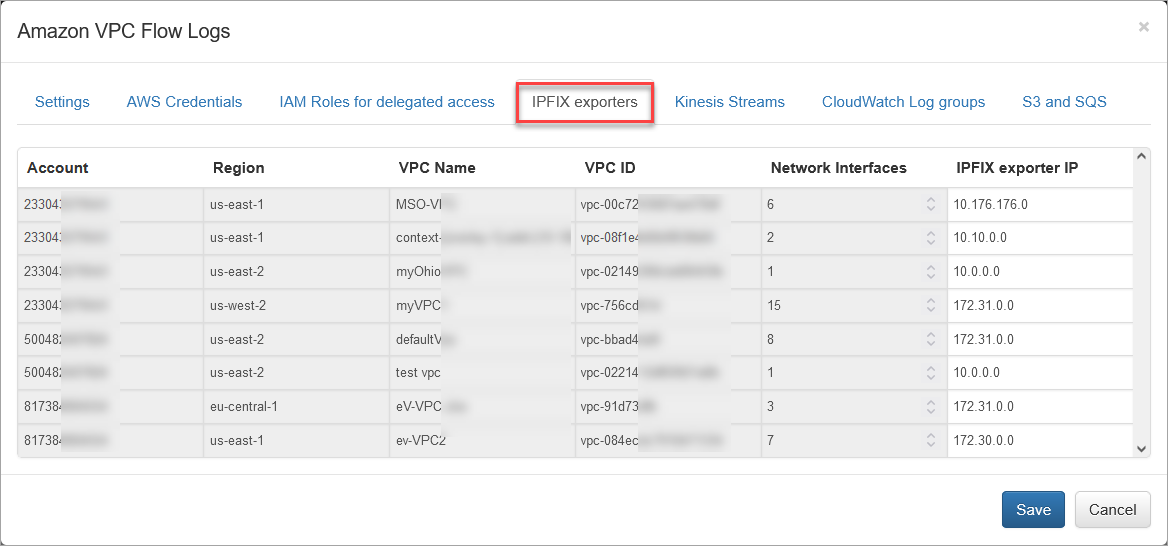
Press the “Run now” button to retrieve the list of accounts and associated VPCs (IPFIX exporters section), Kinesis Streams, CloudWatch Log groups, and S3 buckets (with associated queues).
Open the IPFIX Exporters section to review and assign an exporter IP to each VPC. This IP will be reported as exp_ip= field in syslogs. It is used for compatibility with physical network device *flow reporting in visualizations and alerting.
Enable VPC Flow Logs Input
Depending on your AWS VPC Flow Logs collection, you can enable one or more of the following configurations.
Please note that to avoid duplicate VPC Flow logs ingestion, the EDFN Agent for each VPC will use Kinesis Stream, if configured, before attempting to get logs from the CloudWatch Log group.
Kinesis Streams
Open the Kinesis Streams section to enable VPC Flow logs ingestion using Kinesis Streams. Set Enhanced Fan-Out option, if necessary.
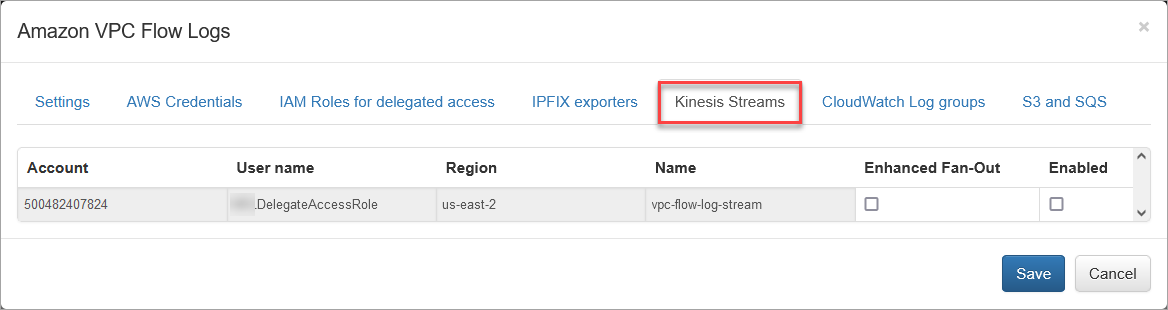
To investigate Kinesis Stream processing problems, change the parameter “KCL metrics level” – Kinesis Client Library metrics level: valid values are NONE, SUMMARY and DETAILED. For more information, visit Monitoring the Kinesis Client Library with Amazon CloudWatch (https://docs.aws.amazon.com/streams/latest/dev/monitoring-with-kcl.html).
CloudWatch Log Groups
Open the CloudWatch Log groups to enable VPC Flow logs ingestion using the CloudWatch API.
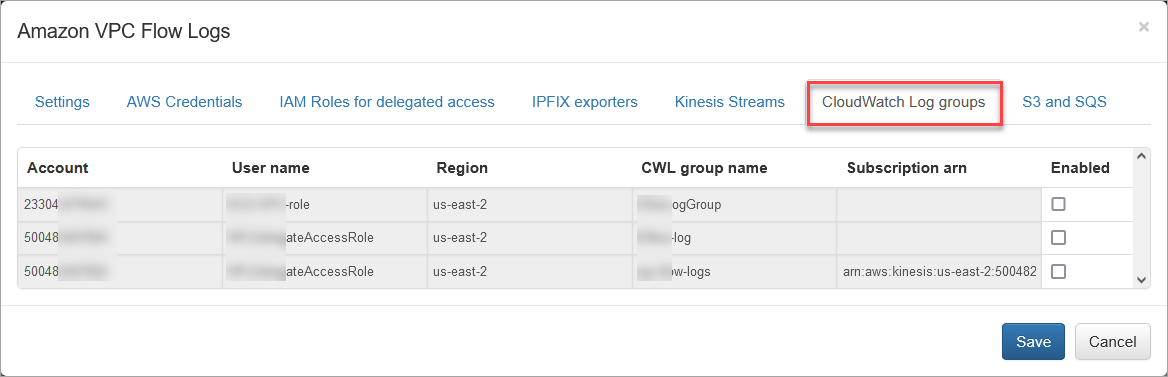
By default, VPC Flow Logs are requested every 30 seconds according to the “CloudWatchLogs request interval” parameter.
S3 and SQS
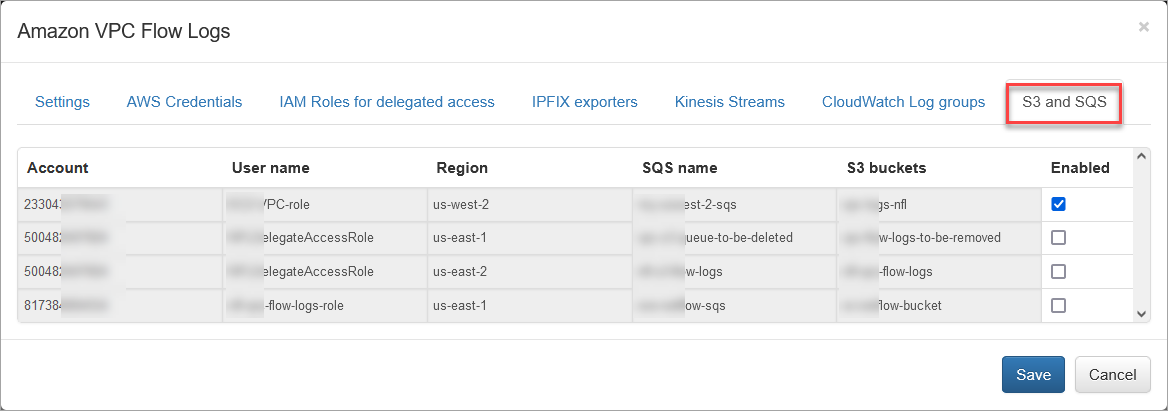
Open the “S3 and SQS” section to enable reading VPC Flow Logs from S3 using SQS messages notifications.
Network Conversations Module Output Fields (Module 10062)
The table below maps native AWS VPC Flow Logs fields to their corresponding output field names in the Network Conversations Monitor (Module 10062). For the complete Module 10062 field reference, see Network Conversations Monitor.
| VPC Flow Logs Native Field | Module 10062 Output Field | Description |
|---|---|---|
nfc_id | Message type identifier (nfc_id=20062) | |
flow_type | Type of flow (AWS) | |
exp_ip | VPC virtual router IPv4 address, assigned per-VPC in the EDFN agent | |
exp_name | VPC flow exporter name | |
account-id | aws_account_id | AWS account ID |
action | action | Flow action: A (Accept) or R (Reject) |
bytes | bytes_in | Bytes in the capture window (forward direction) |
bytes_out | Bytes in the reverse direction (when bidirectional stitching is enabled) | |
packets | packets_in | Packets in the capture window (forward direction) |
packets_out | Packets in the reverse direction (when bidirectional stitching is enabled) | |
srcaddr | src_ip | Source IPv4 or IPv6 address |
srcport | src_port | Source port number |
dstaddr | dest_ip | Destination IPv4 or IPv6 address |
dstport | dest_port | Destination port number |
protocol | protocol | IANA protocol number |
tcp-flags | tcp_flag | TCP flags (e.g. SYN, ACK, FIN) |
start | flow_start_time | Start time of the capture window |
end | flow_end_time | End time of the capture window |
vpc-id | aws_vpc_id | VPC ID |
aws_vpc_name | VPC name | |
interface-id | aws_interface_id | Network interface ID |
instance-id | aws_src_inst_id | Source EC2 instance ID |
aws_dest_inst_id | Destination EC2 instance ID | |
src_vm_name | Source EC2 instance name | |
dest_vm_name | Destination EC2 instance name | |
src_vm_ip_pub | Source EC2 instance public IPv4 address | |
dest_vm_ip_pub | Destination EC2 instance public IPv4 address | |
src_cloud_region | Cloud source region (e.g. us-east-1) | |
dest_cloud_region | Cloud destination region | |
src_cloud_service | Cloud source service (e.g. EC2, S3) | |
dest_cloud_service | Cloud destination service | |
src_asn | Source BGP Autonomous System Number | |
dest_asn | Destination BGP Autonomous System Number | |
src_cc | Source country code (GeoIP-derived, ISO 3166-1 alpha-2) | |
src_region | Source region (GeoIP-derived, city level) | |
src_city | Source city (GeoIP-derived) | |
src_lon | Source longitude (GeoIP-derived) | |
src_lat | Source latitude (GeoIP-derived) | |
dest_cc | Destination country code (GeoIP-derived) | |
dest_region | Destination region (GeoIP-derived, city level) | |
dest_city | Destination city (GeoIP-derived) | |
dest_lon | Destination longitude (GeoIP-derived) | |
dest_lat | Destination latitude (GeoIP-derived) | |
direction | Session origin: inbound, outbound, internal, or unknown | |
state | Conversation lifecycle state: B (Begin), C (Continuing), E (End) | |
duration | Conversation duration in seconds | |
threat_list_name | Name of the matched cybersecurity threat list | |
reputation | Reputation score from the threat list | |
idp | Identity provider for the user | |
username | Username from identity enrichment (AD, Entra ID, Okta) | |
app_id | Application ID | |
app_name | Application name | |
app_desc | Application description |
The following native VPC Flow Logs fields are not mapped by Module 10062:
| VPC Flow Logs Native Field | Notes |
|---|---|
subnet-id | Not mapped by Module 10062 |
type | IPv4/IPv6/EFA traffic type — not mapped by Module 10062 |
pkt-srcaddr | Packet-level origin source IP — not mapped |
pkt-dstaddr | Packet-level origin destination IP — not mapped |
az-id | Availability Zone ID — not supported |
log-status | NODATA and SKIPDATA entries are discarded by the EDFN agent |
pkt-dst-aws-service | Destination AWS service — not supported |
pkt-src-aws-service | Source AWS service — not supported |
flow-direction | AWS-native direction field — not supported (use direction from Module 10062 instead) |
region | AWS region — not supported |
sublocation-id | Sublocation ID — not supported |
sublocation-type | Sublocation type — not supported |
traffic-path | Not supported |
version | VPC Flow Log version. Version 2 uses fixed fields; version 3 and later use a configurable field list. |