Data Preview and Disk Output
Before finalizing your data stream or committing to a high-volume destination, NFO provides built-in utilities to validate your configuration. These tools allow you to inspect enriched telemetry in real-time or capture a sample of processed data to the local file system for offline analysis.
1. Data Preview
The Preview function is an essential diagnostic tool within the NFO Web UI. It provides a real-time mirror of the output stream, allowing you to inspect a sample of the data to verify your logic while it continues to flow to your remote SIEM or Data Lake.
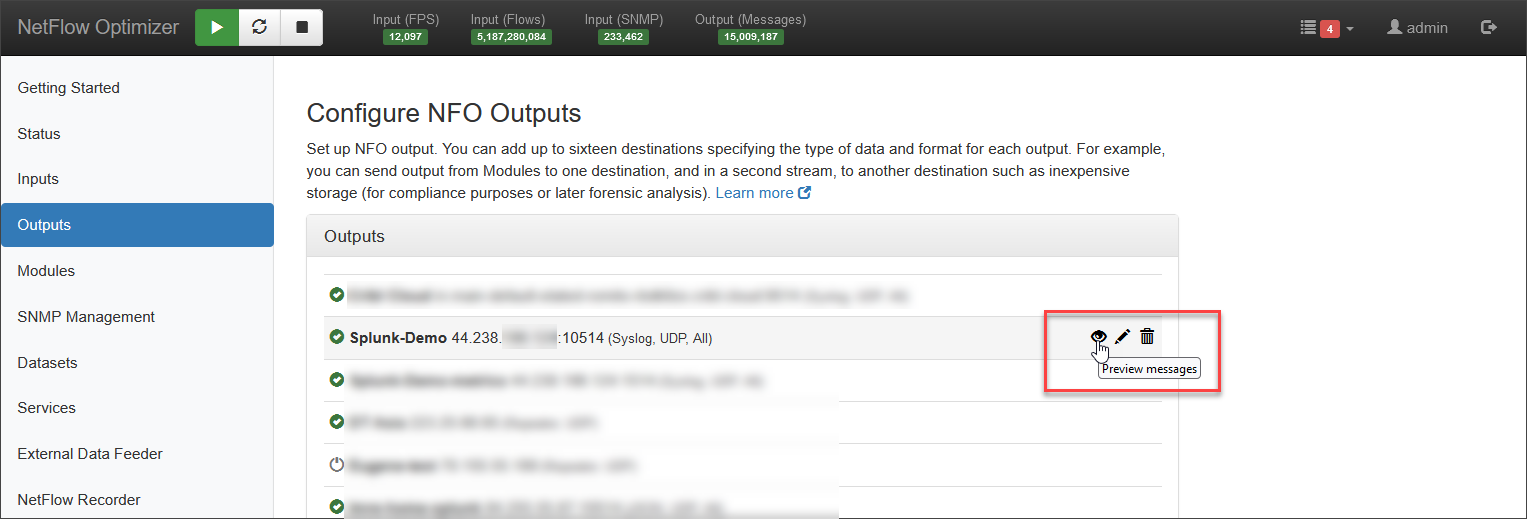
To preview your output click the  icon.
icon.
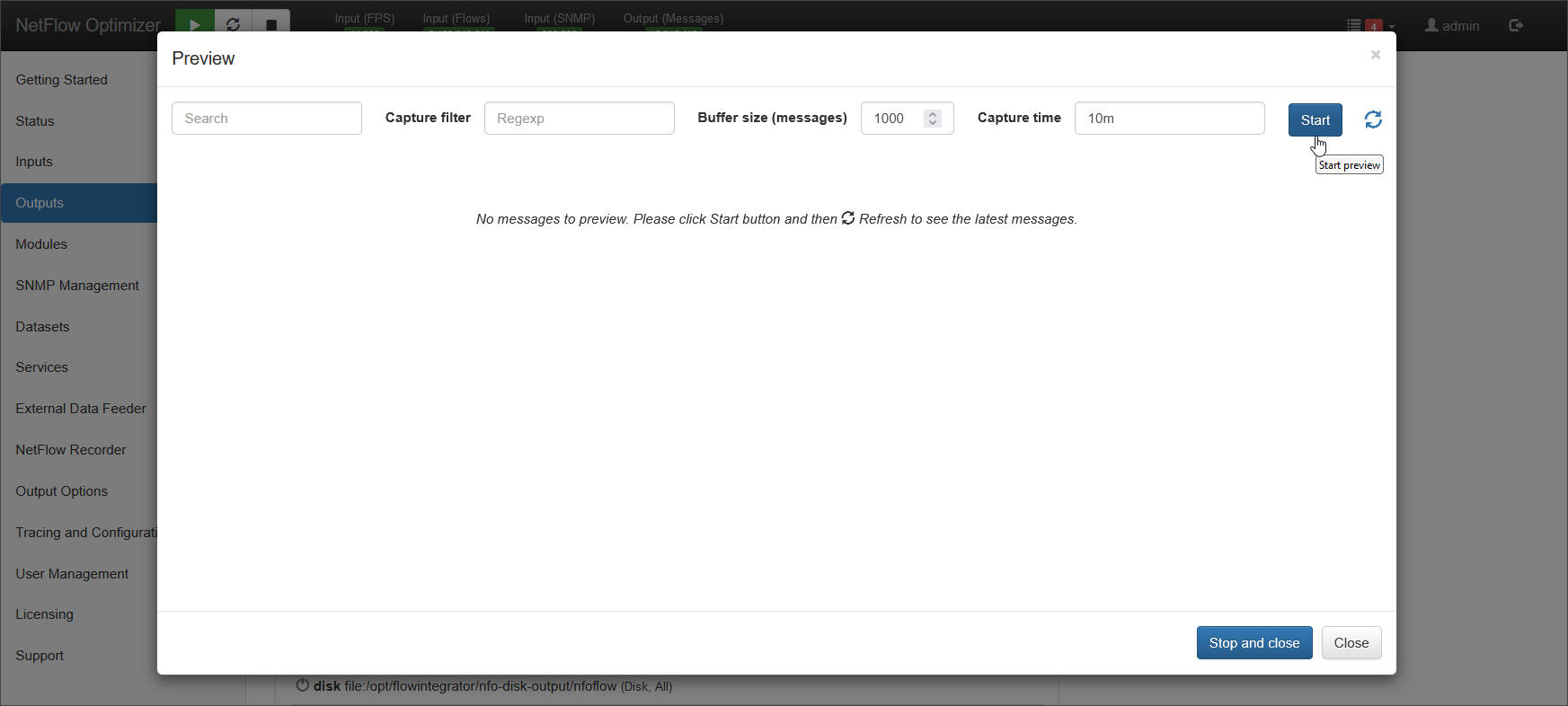
A pop-up window will appear, allowing you to specify preview parameters.
| Preview parameter | Description |
|---|---|
| Capture filter | Use a regular expression to filter the specific output records you want to examine |
| Buffer size (messages) | pecify the maximum number of records to capture |
| Capture time | Set a time window to limit the preview to a specific timeframe |
Capture filter example: to preview messages with src_ip=172.31.24.19, use the following:
src_ip=172\.31\.24\.19
Once you've adjusted these settings, click Start.
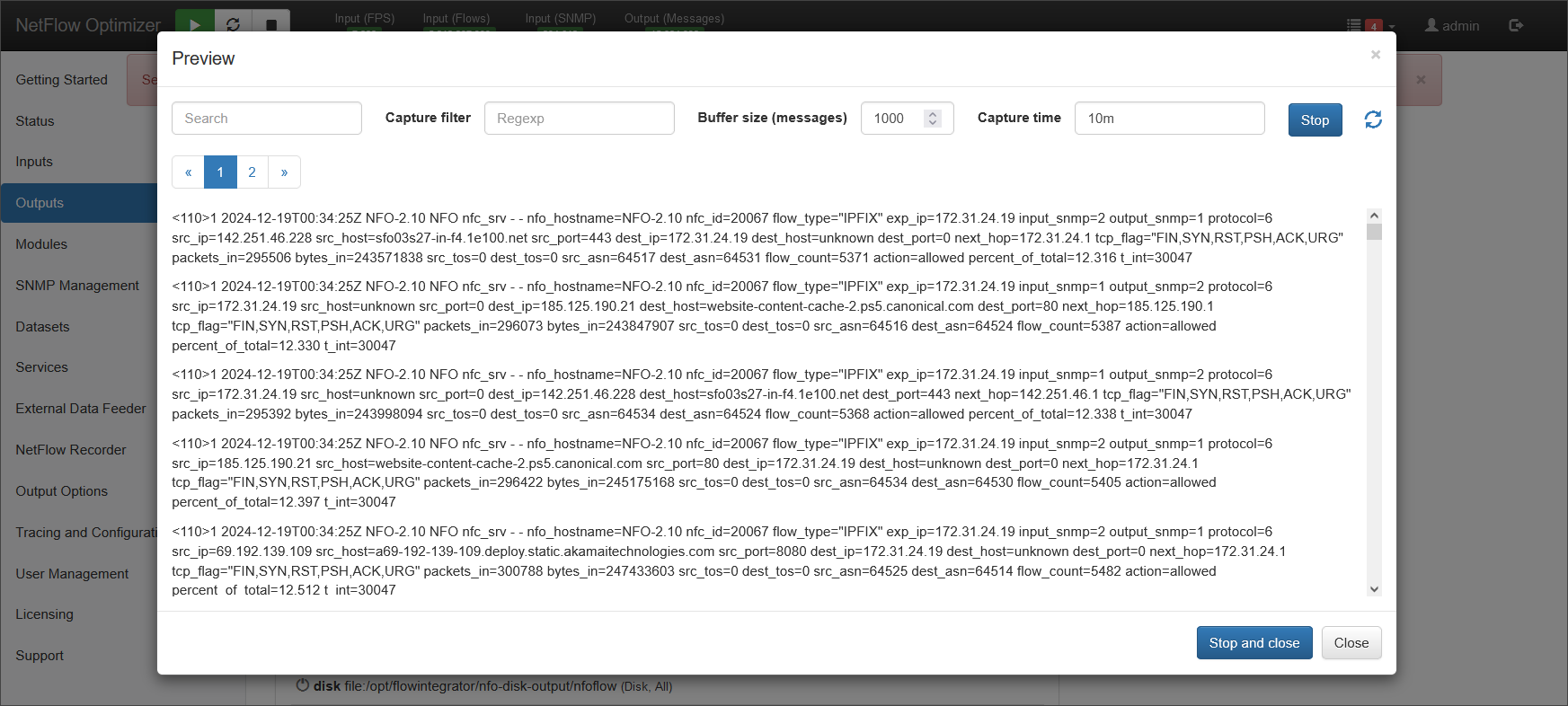
You can view the captured data in the window.
2. Output to Disk
While most NFO telemetry is streamed to remote platforms, the Disk output allows you to write processed records directly to the NFO local file system.
This output is primarily used for troubleshooting, short-term data capture, or forensic "snapshots." It is not recommended for long-term production storage of high-volume flows.
Use this output type to send NFO data to a disk.
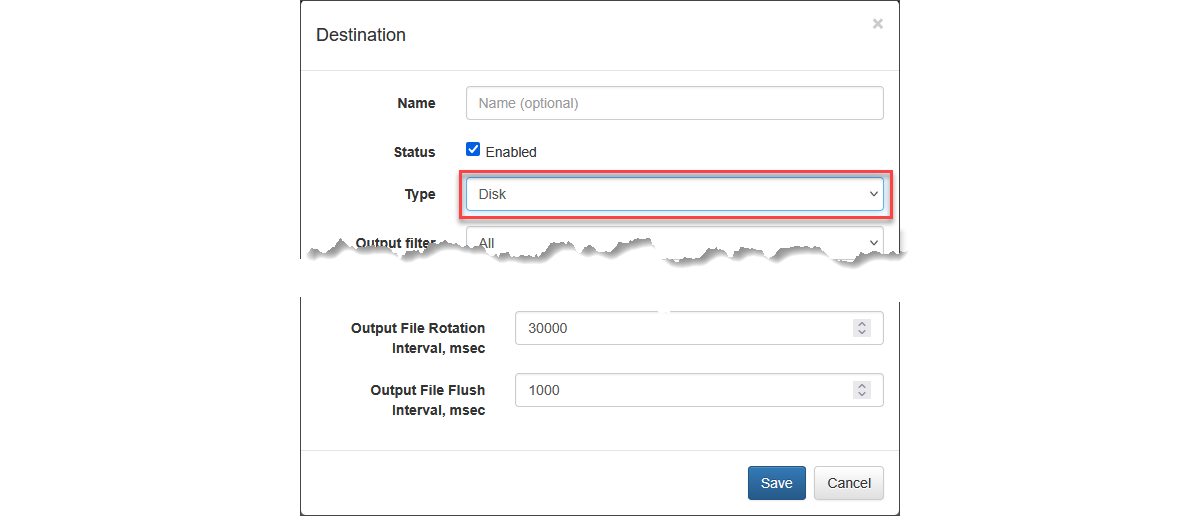
NFO writes data to disk in files, where the file name contains an nfc_id that identifies the Module responsible for producing the content.
Each file includes a header line, and the records within the file consist of data elements separated by blank spaces.
The parameters described below govern each file chunk.
| Parameter | Description |
|---|---|
| Output File Folder | Path to a folder where output files are created |
| Output File Name | File pattern to be used in file name. Default is nfoflow. Default file name is yyyy-mm-dd_nfc_id_hash_hh-mm-ss-nfoflow.log |
| Output File Buffer Size, bytes | Disk output buffer size. Min - 32768, max - 16777216, default - 4194304 |
| Output File Chunk Size, flow records | Disk output file chunk size. Min - 1, max - 1000000, default - 100000 |
| Output File Rotation Interval, msec | Disk output file rotation interval. Min - 1000, max - 3600000, default - 30000 |
| Output File Flush Interval, msec | Disk output write interval. Default - 1000 |
Use Cases: When to use Preview vs. Disk
| Scenario | Recommended Tool |
|---|---|
| New Enrichment Setup | Preview – See immediately if usernames or threat scores are appearing. |
| Debugging Field Names | Preview – Confirm the Output Dictionary is mapping fields correctly. |
| Forensic Snapshot | Disk – Capture 30 minutes of traffic to a local JSON file for a specific investigation. |
| Connectivity Testing | Disk – If a remote SIEM isn't receiving data, write to disk to confirm NFO is producing it correctly. |
Safety Best Practices
- Monitor Disk Space: When using the Disk output, always monitor the available space on the NFO partition.
- Short-Term Only: Disable the Disk output once your troubleshooting or forensic capture is complete.
- Permissions: Ensure the NFO service has write permissions to the designated directory.