EDFN Administration
The External Data Feeder for NFO (EDFN) is the auxiliary engine that handles communications outside the standard NetFlow/IPFIX protocols. This page covers the administrative management of the EDFN service, including security, connectivity, and service maintenance.
Service Management
EDFN is typically installed alongside NFO. Ensuring the service is running and healthy is the first step in enabling cloud ingestion and data enrichment.
Checking Status
- Linux: Use
systemctl -l status nfi_updd.serviceto verify the service is active. - Windows: Open Services.msc and locate the External Data Feeder for NFO service.
Proxy Server Configuration
If your NFO appliance is in a restricted network zone (common in enterprise environments), EDFN must be configured to use a proxy to download Threat Intel updates or reach Cloud APIs (AWS/Azure).
Procedure
-
On the left navigation bar select
External Data Feederand clickProxy settings.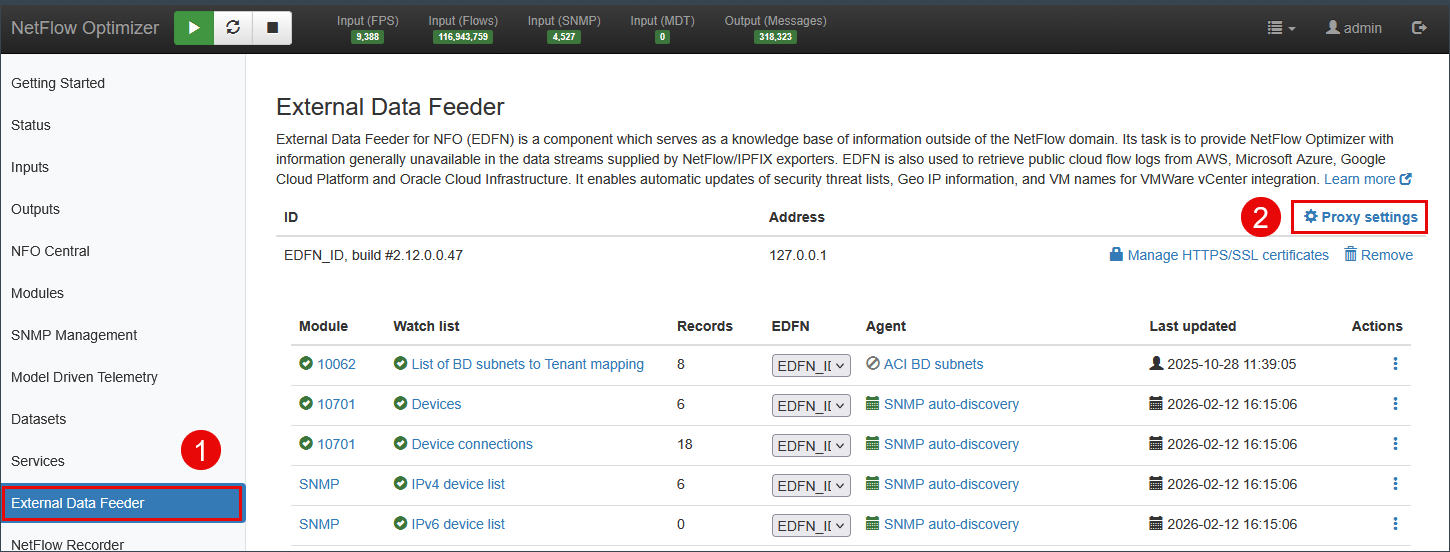
-
Specify your Proxy Server parameters.

-
Press Save to save your settings.
Importing HTTPS Certificates
When your external data sources or targets require secure HTTPS/TLS communication, you may need to import their corresponding certificates into NetFlow Optimizer's trust store. This procedure ensures NFO can establish secure and trusted connections.
NetFlow Optimizer strictly accepts TLS certificates where the subjectAlternativeName (SAN) field contains a DNS name or an IP Address value that correctly matches the data source hostname or IP address.
When you generate certificate using openssl, make sure you specify the following parameter:
-addext "subjectAltName=DNS:example.com,IP:10.0.0.1"
Procedure
Follow these steps to import HTTPS certificates:
-
Obtain the certificate chain.
You can download the certificate chain from your data source using a web browser or the openssl command-line tool. The following command saves the full chain (all
BEGIN CERTIFICATE/END CERTIFICATEblocks) to a singlechain.pemfile:openssl s_client -connect <ip-or-fqdn>:443 -showcerts </dev/null 2>/dev/null \| sed -n '/-----BEGIN CERTIFICATE-----/,/-----END CERTIFICATE-----/p' \> chain.pem -
Access certificate management in NFO.
Navigate to External Data Feeder on the left bar.
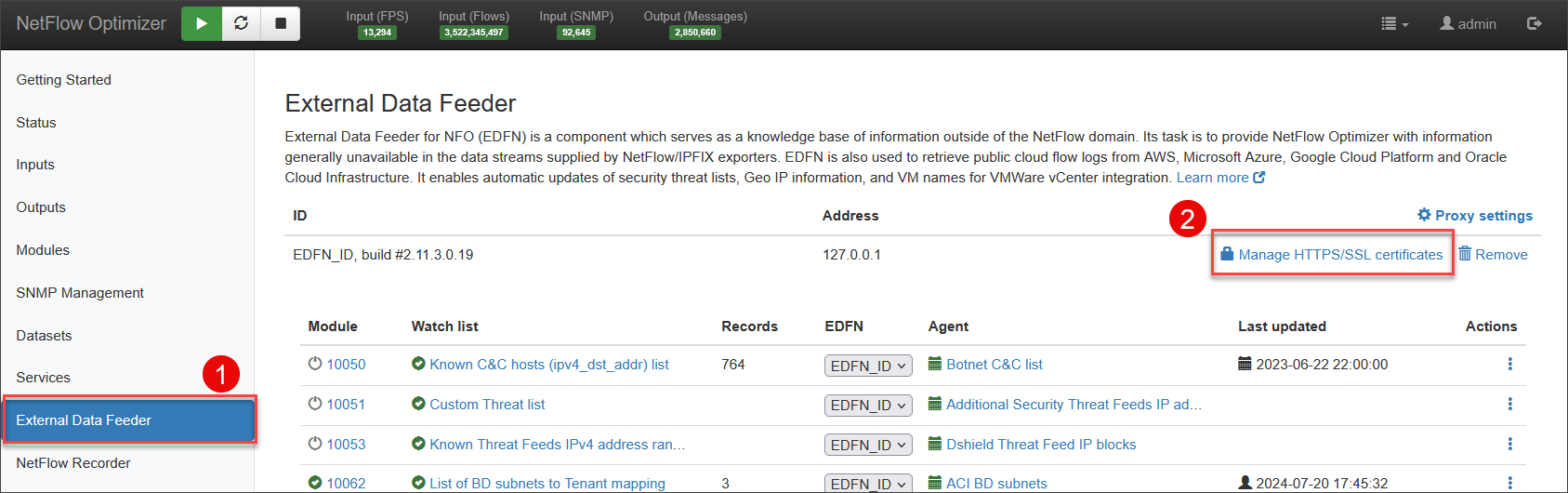
Click Manage HTTPS/SSL certificates.
-
Upload the certificate (root CA or the full chain).
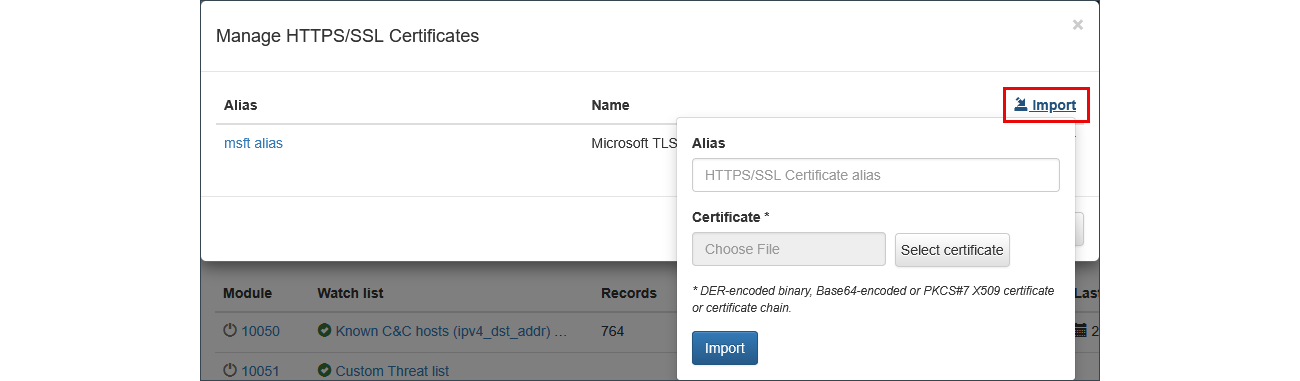
-
Press Save to apply the new certificate configuration.
Copying Configuration
This section is relevant in scenarios where EDFN is installed on a different machine from NFO. It describes how to copy EDFN configuration from machine A to machine B. We assume that EDFN is already installed and configured on machine A. EDFN stores all configuration in the installation directory and in the NFO database, so it can be copied from machine A to B.
Procedure (Linux)
On machine A:
- Stop the EDFN service:
systemctl stop nfi_updd.service
- Create a copy of the installation:
tar -czf nfo-updater_copy.tar.gz /opt/nfi-updater
- Start the EDFN service:
systemctl start nfi_updd.service
- Copy
nfo-updater_copy.tar.gzto machine B.
On machine B:
- Install the same version of EDFN as on machine A. Do not configure EDFN.
- Stop the EDFN service:
systemctl stop nfi_updd.service
- Remove all EDFN files:
rm -rf /opt/nfi-updater
- Extract the copy of EDFN:
tar -xzf nfo-updater_copy.tar.gz -C /
- If EDFN on B should use a different client certificate, reconfigure
.updater_keystore. If Tomcat on the NFO side uses a different certificate, reconfigure.updater_truststore. - Set the
uriproperty in/opt/nfi-updater/conf/updater.properties. - If both EDFN instances (A and B) will be used, set a unique
uidproperty in/opt/nfi-updater/conf/updater.propertieson B. NFO identifies EDFN instances byuid, so it cannot distinguish two instances with the same value:uid = <EDFN_ID> - Start the EDFN service:
systemctl start nfi_updd.service
- Verify that EDFN has started: in the GUI, open Status > History. The log should contain a line like INFO[updater] Updater<updaterUID> (x.x.x.x.x) connected.
Authentication Configuration
$NFO_HOME - /opt/flowintegrator
$EDFN_HOME - /opt/nfi-updater
Set these variables before running the commands on this page:
export NFO_HOME=/opt/flowintegrator
export EDFN_HOME=/opt/nfi-updater
A self-signed certificate is pre-installed in $EDFN_HOME/conf/.updater_keystore (keystore and private key password: password). To change this default password, see Changing the Keystore Password below.
External Data Feeder for NFO (EDFN) authenticates to NetFlow Optimizer as the user updater using an X.509 certificate. This user is restricted to data set maintenance, and the certificate is automatically generated during the initial NFO installation or upgrade to release 2.10 or later.
You generally do not need to modify this configuration unless your specific security policy requires a manual update. If you must change the certificate, follow the instructions below.
X509 Authentication
Procedure
- Back up and remove the existing EDFN keystore, and delete the previous
updaterandupdater-caentries from the NFO truststore:Depending on the previous configuration, only one of these aliases exists. Ignore themv $EDFN_HOME/conf/.updater_keystore \$EDFN_HOME/conf/.updater_keystore.bak$NFO_HOME/java/jre/bin/keytool -delete \-alias updater \-keystore $NFO_HOME/tomcat/conf/.truststore \-storepass password$NFO_HOME/java/jre/bin/keytool -delete \-alias updater-ca \-keystore $NFO_HOME/tomcat/conf/.truststore \-storepass passwordAlias <...> does not existerror for the other. - Generate a new key pair in a PKCS12 keystore:
$EDFN_HOME/java/jre/bin/keytool -genkeypair \-alias updater \-dname "CN=updater" \-keyalg EC \-groupname secp384r1 \-validity 3650 \-keystore $EDFN_HOME/conf/.updater_keystore \-storetype PKCS12 \-storepass password
- Establish trust using one of the options below.
Option A: CA-signed certificate
- Generate the Certificate Signing Request:
$EDFN_HOME/java/jre/bin/keytool -certreq \-alias updater \-file updater.csr \-keystore $EDFN_HOME/conf/.updater_keystore \-storepass password
- Sign
updater.csrwith your CA. You need the resultingupdater.crtand the CA certificateCA.crt. - Import the CA certificate into the EDFN keystore:
$EDFN_HOME/java/jre/bin/keytool -importcert \-alias updater-ca \-file CA.crt \-keystore $EDFN_HOME/conf/.updater_keystore \-storepass password
- Import the signed certificate into the EDFN keystore (replaces the self-signed certificate of the
updaterkey):$EDFN_HOME/java/jre/bin/keytool -importcert \-alias updater \-file updater.crt \-keystore $EDFN_HOME/conf/.updater_keystore \-storepass password - Import the CA certificate into the NFO truststore:
$NFO_HOME/java/jre/bin/keytool -importcert \-alias updater-ca \-file CA.crt \-keystore $NFO_HOME/tomcat/conf/.truststore \-storepass password
Option B: Self-signed certificate
- Export the self-signed certificate:
$EDFN_HOME/java/jre/bin/keytool -exportcert \-alias updater \-file updater.crt \-keystore $EDFN_HOME/conf/.updater_keystore \-storepass password
- Import it into the NFO truststore:
$NFO_HOME/java/jre/bin/keytool -importcert \-alias updater \-file updater.crt \-keystore $NFO_HOME/tomcat/conf/.truststore \-storepass password \-noprompt
After completing either option, restart the NFO and EDFN services.
Notes:
-
The certificate CN field value must be updater.
-
If the keystore type, keystore password, key password, or key algorithm were changed, update
$EDFN_HOME/conf/updater.propertiesaccordingly. PKCS12 uses a single password, sokeyPassmust equalkeystorePass:keystoreFile = ../conf/.updater_keystorekeystoreType = pkcs12keystorePass = passwordkeyPass = passwordkeyAlgorithm = SunX509keyAlgorithmis the key manager algorithm, not the key type. KeepSunX509for both EC and RSA keys. -
Commands on this page pass the default password with
-storepass. When using a non-default password, omit-storepassand enter the password at the keytool prompt: passwords passed on the command line are saved in shell history and visible in the process list.
Import the Certificate into External Data Feeder for NFO truststore
NFO and External Data Feeder for NFO use a secure connection (HTTPS) for communication. The Tomcat certificate and root chain are imported automatically into $EDFN_HOME/conf/.updater_truststore during the first connection. If the Tomcat certificate is changed, either reimport it into .updater_truststore manually, or delete .updater_truststore (it is recreated after the External Data Feeder for NFO service restarts).
Procedure
To reimport the certificate:
- Delete the previous certificate(s):
- List the current trusted certificates:
$EDFN_HOME/java/jre/bin/keytool -list \-keystore $EDFN_HOME/conf/.updater_truststore
- Delete each certificate listed in the previous step:
$EDFN_HOME/java/jre/bin/keytool -delete \-alias <crtAlias> \-keystore $EDFN_HOME/conf/.updater_truststore
- List the current trusted certificates:
- Import the root CA certificate:
$EDFN_HOME/java/jre/bin/keytool -importcert \-trustcacerts \-alias root \-file rootCA.crt \-keystore $EDFN_HOME/conf/.updater_truststore
- Import the Tomcat certificate:
$EDFN_HOME/java/jre/bin/keytool -importcert \-alias tomcat \-file srv.crt \-keystore $EDFN_HOME/conf/.updater_truststore
- Restart the EDFN service:
systemctl restart nfi_updd.service
Changing the Keystore Password
This section describes how to update the keystore passwords used by the External Data Feeder for NFO (EDFN).
Prerequisites
- Administrative access to the server where EDFN is installed.
- Knowledge of the current keystore passwords. The default password is
password.
- Backup: Before making any changes, back up
.updater_keystore,.updater_truststore,.cacerts(if present), andupdater.propertiesin$EDFN_HOME/conf, for example:mkdir -p ~/edfn-conf-backupcp -p \$EDFN_HOME/conf/.updater_keystore \$EDFN_HOME/conf/.updater_truststore \$EDFN_HOME/conf/updater.properties \~/edfn-conf-backup/ - Upgrades: An NFO/EDFN upgrade may overwrite
updater.properties. Re-apply password changes and other custom configuration after the upgrade. - Consistency: The passwords in
updater.propertiesmust exactly match the passwords set withkeytool.
Instructions
The keytool commands below prompt for passwords: -storepasswd asks for the current and the new password.
- Navigate to the EDFN configuration directory:
cd $EDFN_HOME/conf/
- Change the
.updater_keystorestore password:$EDFN_HOME/java/jre/bin/keytool -storepasswd -keystore .updater_keystore - Verify that the private key opens with the new password. Enter the new password at the prompt; the command fails if the key does not open:
$EDFN_HOME/java/jre/bin/keytool -certreq \-alias updater \-keystore .updater_keystore \-file /dev/null
- Change the
.updater_truststorepassword:$EDFN_HOME/java/jre/bin/keytool -storepasswd -keystore .updater_truststore - If the
.cacertsfile exists, change its password:$EDFN_HOME/java/jre/bin/keytool -storepasswd -keystore .cacerts - Open
updater.propertiesfor editing:vi updater.properties - Set
keystorePass,keyPass,truststorePass, andcacertsPassto the new passwords.keyPassmust equalkeystorePass. Save the file and exit the editor. - Restart the EDFN service for the changes to take effect:
- Linux:
systemctl restart nfi_updd.service - Windows: restart the External Data Feeder for NFO service (
NFOUSvc).
- Linux:
What to do next
If the certificate was imported automatically (.updater_truststore created automatically), verify it with:
$EDFN_HOME/java/jre/bin/keytool -list \
  -v \
  -keystore $EDFN_HOME/conf/.updater_truststore
You can change the .updater_truststore type, password, and path in $EDFN_HOME/conf/updater.properties.
Where to find Data Configuration?
Looking for how to configure specific data sources? Refer to the following sections:
- To configure AWS, Azure, GCP, or Oracle flow logs, see Data Ingestion > Cloud Flow Logs.
- To configure Threat Intel, GeoIP, or vCenter, see Data Enrichment.