NFO Central: HA & Distributed Deployment
NFO Central is the management and resilience hub for distributed NetFlow Optimizer deployments. It enables High Availability (HA) and horizontal scalability by coordinating a cluster of NFO instances.
NFO Central and distributed deployment functionality are currently available only for Linux-based NFO installations. Windows deployments currently support Standalone mode only.
The platform operates in three primary modes to support different scale and reliability requirements:
- Standalone: A single NFO instance handling all functions: ingestion, processing, and output.
- NFO Central: Receives all NetFlow traffic from exporters and distributes it across NFO Peer nodes. Acts as the control plane for the cluster, monitoring peer health, orchestrating load rebalancing, and optionally centralizing licensing.
- NFO Peer: Worker nodes that perform flow ingestion, enrichment, and output. Multiple peers operate in an Active-Active configuration to provide both scale and redundancy.
Standalone Deployment
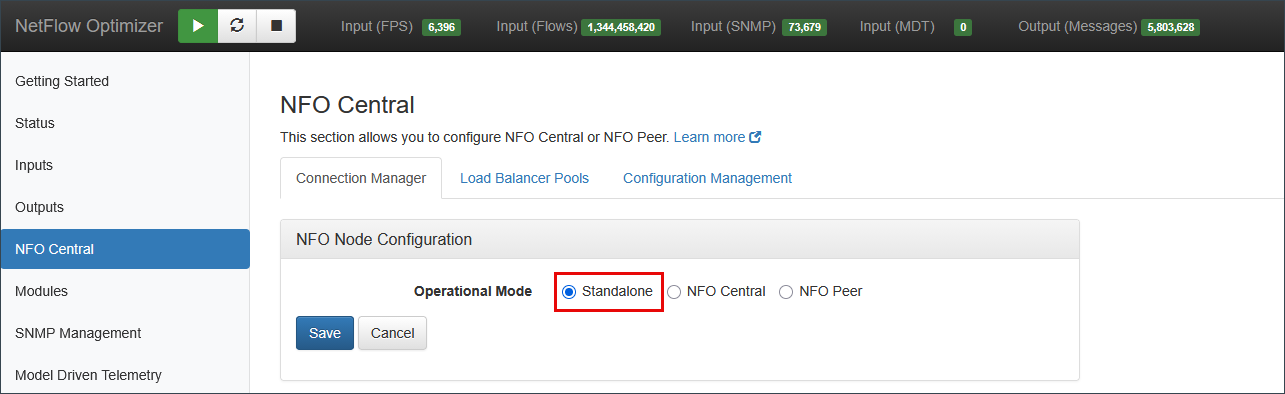
In Standalone mode, a single NFO instance handles all collection, processing, and output tasks without external peer distribution. A single instance can process up to 200,000 flows per second, making this mode appropriate for most deployments. Distributed mode is recommended when your environment exceeds this threshold or when you require high availability.
Distributed Deployment
Architecture & HA Considerations
Understanding the role of each component is essential before deploying a distributed NFO architecture.
NFO Central: the ingestion and control point
All NetFlow exporters on your network are configured to send flow data to NFO Central's IP address. NFO Central receives this traffic and distributes it to peer nodes for processing. It also monitors peer health and orchestrates load rebalancing across the pool.
Because all exporter traffic flows through NFO Central, it is the single most critical component in the architecture. If NFO Central goes offline, flow ingestion stops entirely: exporters have nowhere to send data, and peers have nothing to process. This is not a graceful degradation; it is a complete stop of the data pipeline.
NFO Central must be treated as the primary HA target in any distributed deployment. The Active-Active peer pool provides resilience for the data processing layer, but that resilience is meaningless if Central itself is unavailable. Deploy NFO Central on a platform that provides automatic VM-level recovery on hardware failure.
Recommended platforms for NFO Central HA:
On-premises:
- VMware vSphere HA: automatically restarts VMs on another host when a hardware failure is detected. The most common enterprise choice.
- oVirt / Red Hat Virtualization: KVM-based platform with built-in VM HA. Suitable for organizations running open-source or Red Hat virtualization stacks.
- Proxmox VE: KVM-based with HA cluster support. Common in smaller enterprise environments.
- Microsoft Hyper-V with Windows Server Failover Clustering (WSFC): provides VM-level HA for Windows Server hosts running NFO Central on Linux guest VMs.
Cloud:
- AWS EC2 Auto Recovery: automatically recovers an instance on the same host or a new host on hardware failure.
- Azure VM Availability Sets or VM Scale Sets: distribute VMs across fault domains to protect against rack-level failures.
- GCP Managed Instance Groups: automatically restart VMs that fail health checks.
NFO Peers: the processing layer
Peers handle all flow processing, enrichment, and output. If a peer becomes unresponsive, NFO Central automatically redistributes its exporters to the remaining healthy peers in the pool. The data pipeline continues without interruption as long as at least one peer remains available.
Because NFO Central automatically redistributes traffic when a peer goes offline, adding hypervisor-level HA to peer VMs is redundant. A VM restart typically takes 1 to 3 minutes, by which time Central has already rebalanced the pool. When the peer recovers and rejoins, Central rebalances again. Two rebalance events with no benefit. Let the pool handle peer failover; reserve VM-level HA for NFO Central.
Minimum requirements for a resilient deployment:
- Deploy at least two peers per pool. A single-peer pool has no failover target. If that peer goes offline, Central has nowhere to redistribute traffic.
- Size your pool with sufficient N+1 headroom. In the event of a peer failure, the remaining members of the pool must collectively possess enough capacity to absorb the total load. If the remaining aggregate capacity is insufficient, traffic will be dropped during the failover window.
- Deploy NFO Central on a hypervisor HA platform. See recommendations above.
Network requirements:
NFO Central preserves each exporter's source address when it forwards flows to a peer, so the network path from NFO Central to its peers must carry the same IP version the exporters use. If any of your exporters send flows over IPv6, NFO Central and its peers need IPv6 connectivity between them. An IPv4-only path between NFO Central and its peers cannot carry flows from IPv6 exporters.
If your exporters use IPv6 and you cannot provide IPv6 connectivity between NFO Central and its peers, contact support@netflowlogic.com for a tunneling configuration.
Configuring a Distributed Deployment
Setting up a distributed NFO architecture involves the following steps:
- Deploy and configure NFO Central: select NFO Central mode and generate the access token.
- Deploy two or more NFO Peer nodes and connect each one to NFO Central by entering the NFO Central URL and access token.
- Verify peer connectivity in NFO Central's Connection Manager tab.
- Log in to one peer's web UI and configure it completely (inputs, modules, and outputs). This peer will serve as the configuration source for the rest of the pool.
- Import that peer's configuration into NFO Central.
- Create a Load Balancer Pool, assign the imported configuration, and add peer nodes.
- Verify that peers are receiving and processing flows.
The sections below walk through each step in detail.
If this instance is currently running as a Standalone deployment, export its configuration before changing the Operational Mode to NFO Central. Use the Export Configuration link on the NFO Central page and save a snapshot. You will import this snapshot in Step 5 to push your existing inputs, modules, and outputs to all peer nodes, without reconfiguring them manually.
Step 1: Configure NFO Central
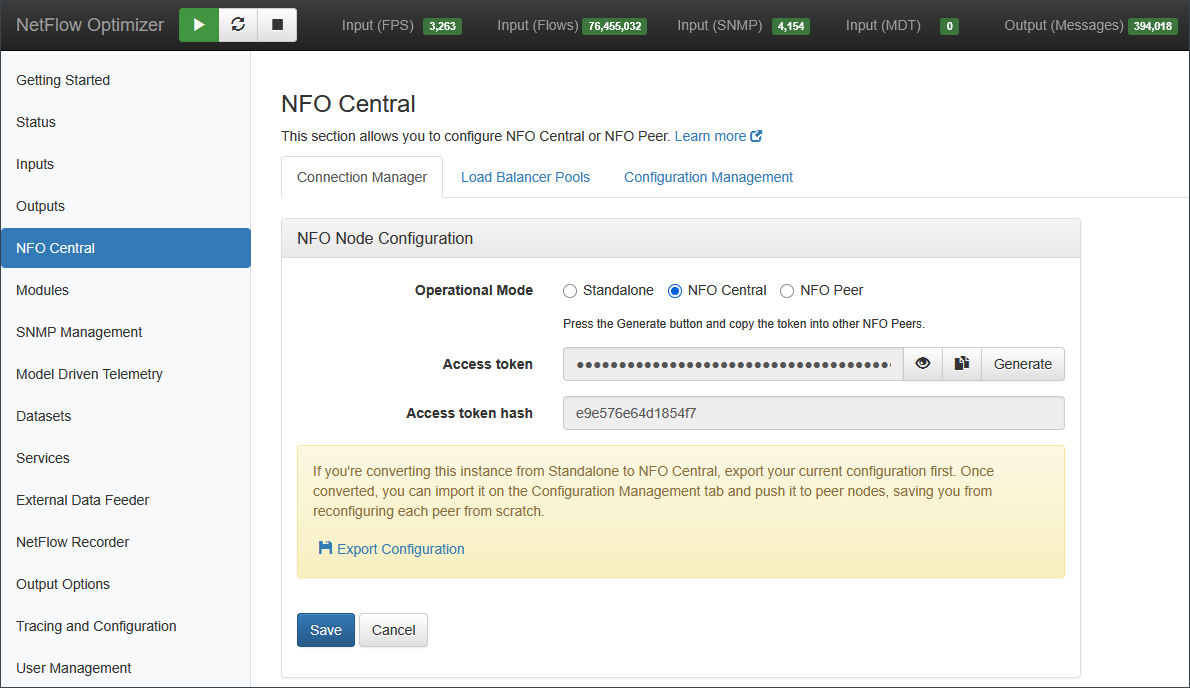
In the NFO web interface, select NFO Central as the operational mode. The interface expands to show the authentication tokens used to secure communication with peer nodes.
- Access Token: Press Generate to create a new token. Peers use this token to authenticate their connection to NFO Central.
- Access Token Hash: A secure hash of the access token, displayed for verification purposes.
Save the access token; you will need it when configuring each peer in the next step.
Export Configuration
When you select NFO Central, a reminder appears beneath the token fields with an Export Configuration link. If you are converting an existing Standalone instance, click this link before clicking Save.
Switching to NFO Central mode stops this instance from running its own processing pipeline, so any inputs, modules, and outputs it had as a Standalone instance are no longer active locally. Exporting first captures that working configuration as a snapshot you can reuse. You will import the snapshot in Step 5 and push it to all peers in the pool, so they start with the same configuration instead of being set up by hand.
NFO Central can obtain a configuration snapshot from two places, depending on where your working configuration already lives:
- Export Configuration (this step) captures the configuration from the instance you are converting, before it becomes NFO Central. Use this when the instance you are promoting already has a complete Standalone configuration.
- Import From Peer (Step 5) pulls the configuration from a peer you have already configured after the cluster is running. Use this when you configured a peer first, as described in Step 4.
Both produce a configuration snapshot you assign to a Load Balancer Pool in Step 6. Use whichever matches your situation.
Save the exported snapshot somewhere accessible. After you click Save and the instance restarts as NFO Central, you will import it on the Configuration Management tab.
Step 2: Deploy and Connect NFO Peers
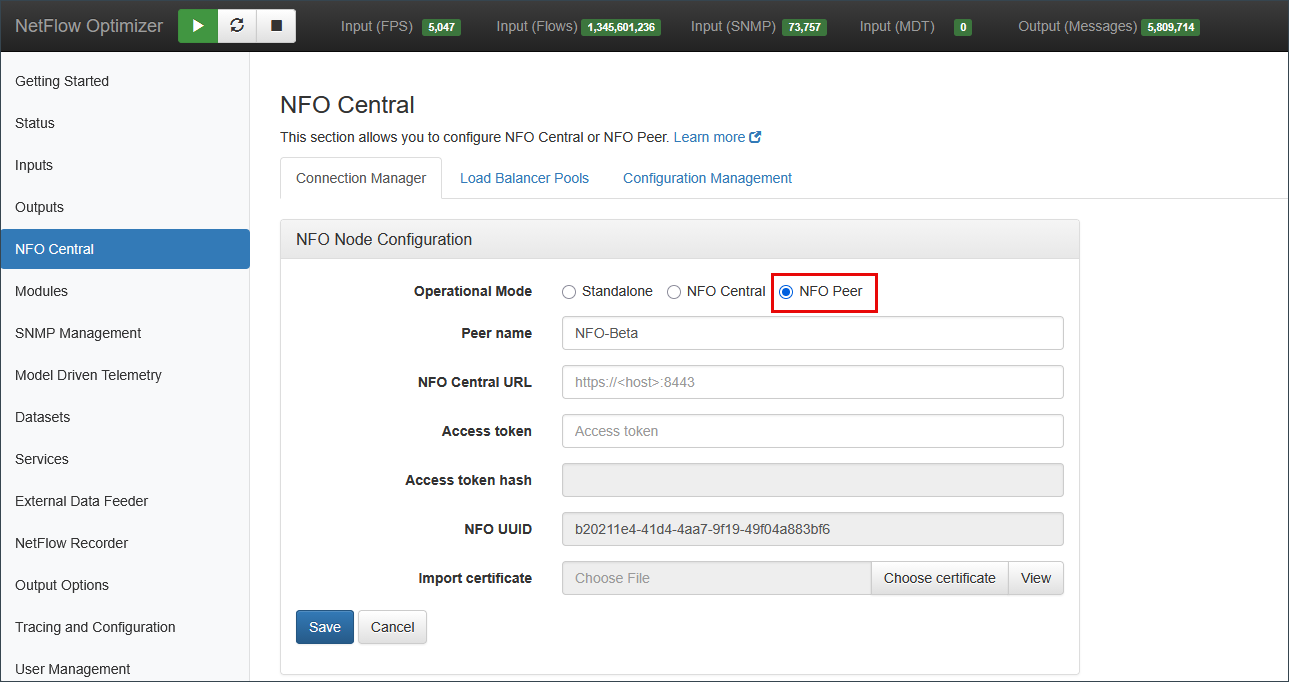
Install NFO on each peer node. In the NFO web interface on each peer, select NFO Peer as the operational mode and enter the following:
- Peer name: A unique name for this peer within the deployment.
- NFO Central URL: The full URL of the NFO Central instance, including port (e.g.,
https://<host>:8443). - Access Token: The token generated on NFO Central in Step 1.
- Import certificate: Used to secure the HTTPS connection between the peer and NFO Central.
After saving, the peer verifies its connection to NFO Central, requests its license, and begins sending health and usage data.
Step 3: Verify Peer Connectivity
Navigate to the Connection Manager tab on the NFO Central instance.
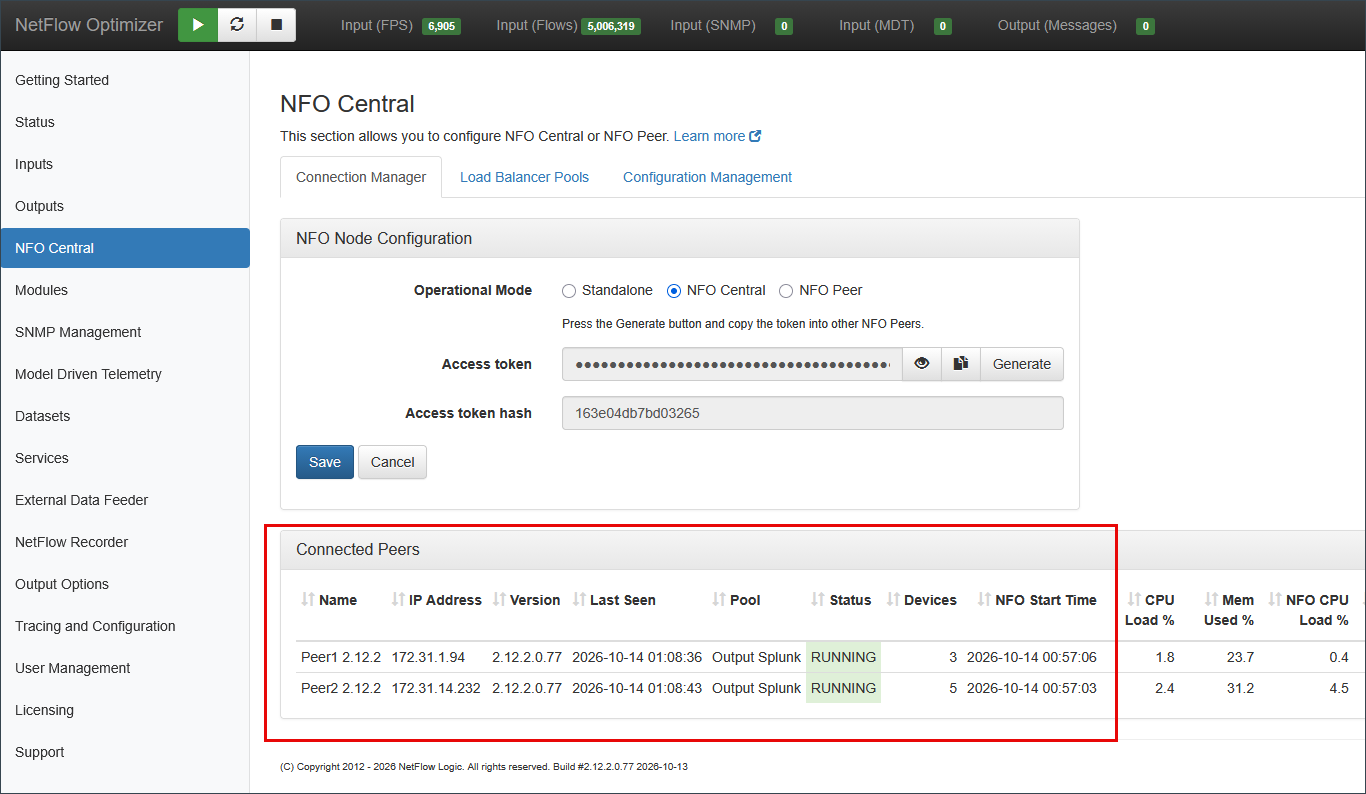
Confirm the following for each peer before proceeding:
- Operational Status: the Status column shows RUNNING in green.
- Connection Timing: the Last Seen timestamp is current.
- System Health: CPU Load % and Mem Used % are within normal range.
- Stability: Total Drops is not growing.
The Connected Peers table provides the following metrics:
| Metric | Description |
|---|---|
| Name | The hostname of the connected NFO Peer node. |
| IP Address | The network address of the connected NFO Peer node. |
| Version | The software version running on the NFO Peer node. |
| Last Seen | Timestamp of the last successful communication with the peer. |
| Pool | The name of the NFO Peer Pool. |
| Status | Shows the current operational state (e.g., RUNNING, ONLINE, OFFLINE). |
| Devices | The number of SNMP devices assigned to this peer for polling. See SNMP Device Assignment. |
| NFO Start Time | The timestamp indicating when the NFO Peer process was last started. |
| CPU Load % | The current system-wide CPU utilization for the peer node. |
| Mem Used % | The percentage of system memory currently utilized by the peer node. |
| NFO CPU Load % | The percentage of CPU dedicated specifically to the NFO process on the peer node. |
| NFO Mem Used... | The amount of memory being used specifically by the NFO process. |
| Input Rate | The number of packets/messages the peer is currently ingesting. |
| Processing Rate | The rate at which the peer is processing flows, measured in flows per second. |
| Total Drops | The cumulative number of flows dropped by the peer node due to overload or processing issues. |
A small number of drops on startup is normal while NetFlow v9/IPFIX templates are being established. Persistent or growing drop counts indicate a configuration or capacity issue. See Data Quality & Performance.
Step 4: Configure One Peer Completely
Log in to one peer's web UI at https://<peer-host>:8443 and configure it fully (inputs, modules, and outputs). This peer's configuration will be imported into NFO Central and distributed to the remaining peers in the pool, so it is important to complete this configuration before proceeding.
This peer is only the source of the initial configuration. Once the configuration is assigned to a pool, NFO Central overwrites every peer in that pool, including this one. For changing the configuration after the cluster is running, see Changing a Pool Configuration.
Step 5: Import the Configuration into NFO Central
Once the peer is configured, return to NFO Central and import its configuration.
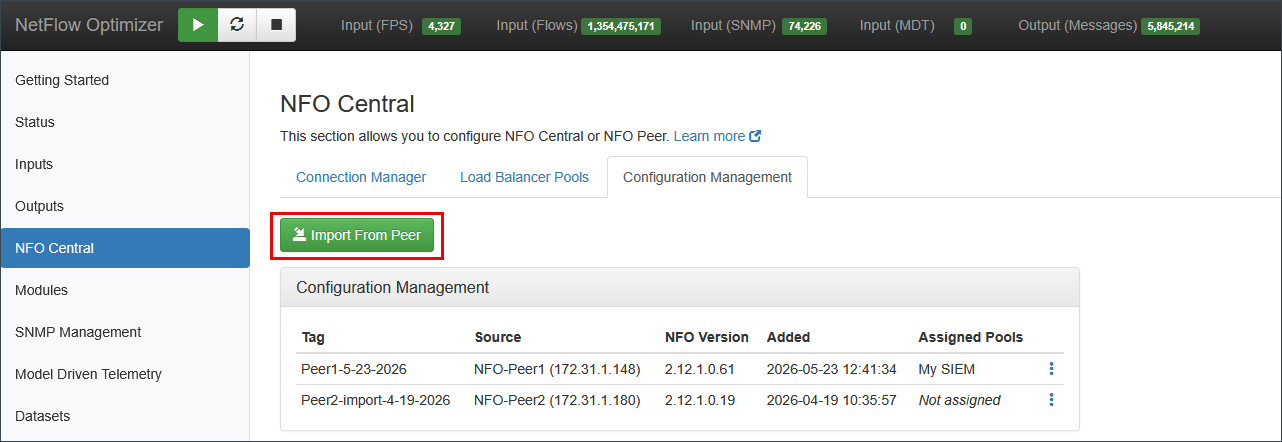
Navigate to the Configuration Management tab and click Import From Peer. In the popup, select the configured peer and enter a tag, a free-text label to identify this configuration snapshot (e.g., Peer1-2026-06-01). Click OK. The configuration appears in the table with its source peer, NFO version, import timestamp, and assigned pool status.
You can also import a configuration directly from the Connection Manager tab by clicking the three-dot menu on a peer's row and selecting Import Configuration. Both paths produce the same result; use whichever is more convenient.
Configuration Table
| Column | Description |
|---|---|
| Tag | The label assigned to this configuration snapshot at import time. |
| Source | The peer node the configuration was imported from, including its IP address. |
| NFO Version | The NFO software version running on the source peer at the time of import. |
| Added | Timestamp of when the configuration was imported. |
| Assigned Pools | The pool this configuration is currently assigned to, or Not assigned. |
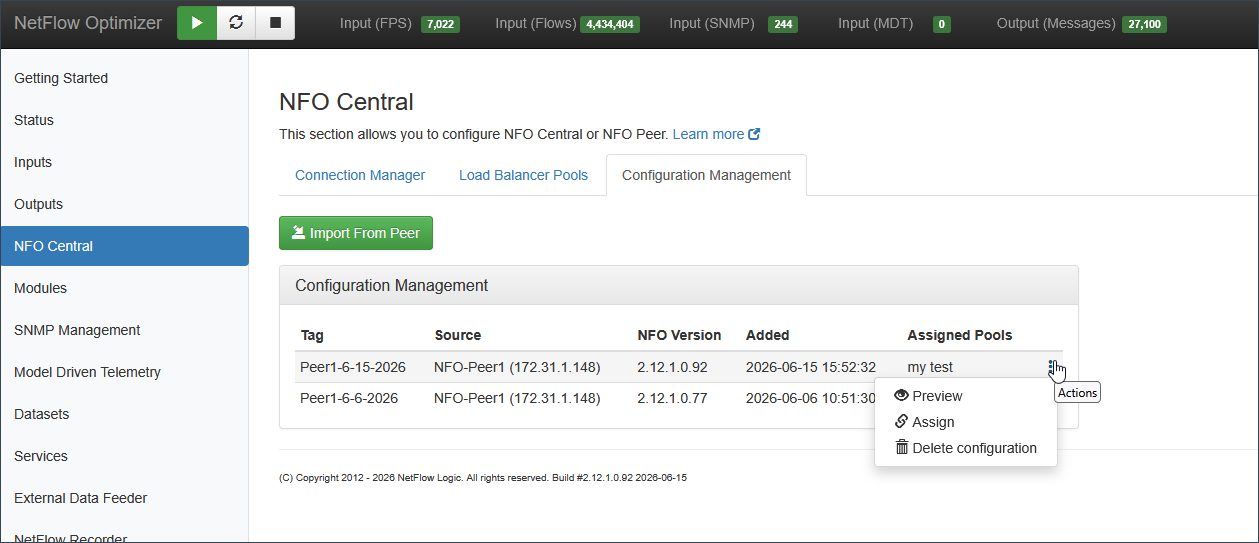
Use the three-dot action menu on each row to preview, assign configuration to a pool, or delete a configuration snapshot.
Step 6: Create a Load Balancer Pool
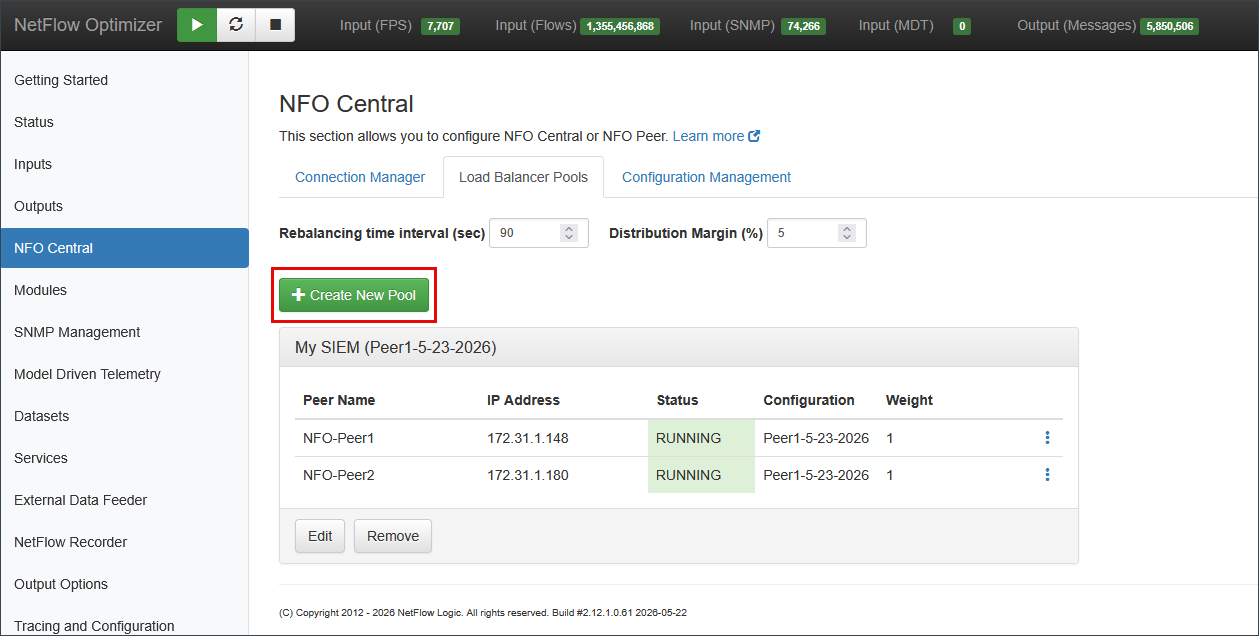
Navigate to the Load Balancer Pools tab and click Create New Pool.
- Define the Pool Name: Enter a descriptive name for the pool (e.g.,
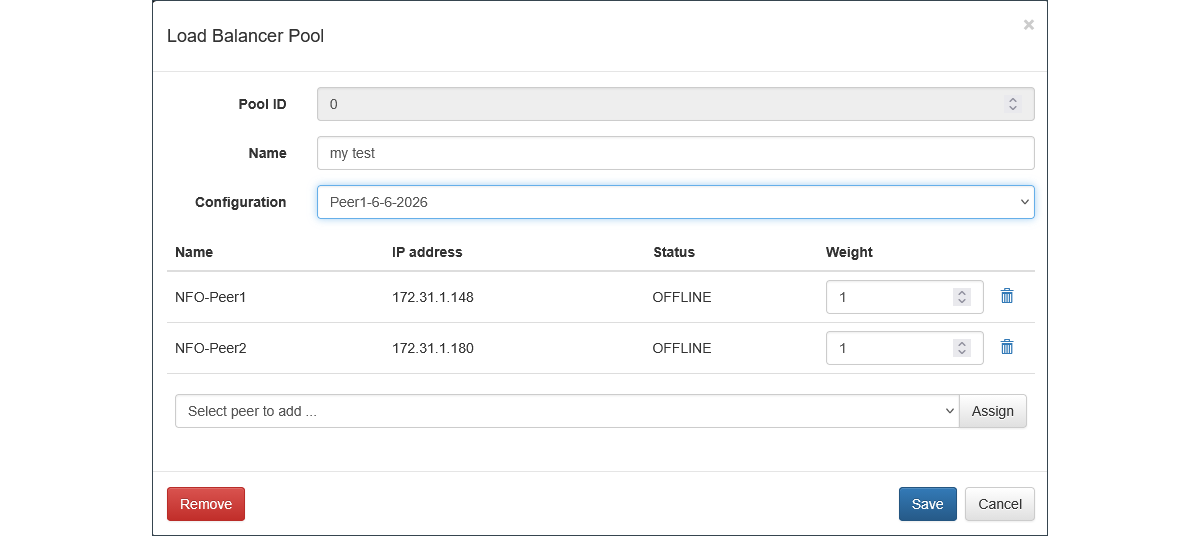
My-Pool1). - Select Configuration: Select the configuration imported in Step 5. This configuration will be pushed to all peers assigned to this pool.
- Add Peers: Use the Select peer to add... dropdown to select a connected peer node and click Assign. Repeat for each peer.
- Set Weights: Enter a weight for each peer. Weight is a relative coefficient defining each peer's target share of pool traffic. NFO Central normalizes weights across peers and uses them as capacity ratios during rebalancing.
- Finalize: Once all required peers are listed, click Save.
After the pool is saved, NFO Central pushes the selected configuration to all peers in the pool and begins distributing traffic based on real-time ingestion rates.
Configuring the Rebalancing Interval and Distribution Margin
Once your pool is created, you can optionally tune the rebalancing behavior. Configure the Rebalancing time interval (sec) and Distribution Margin (%) in the Load Balancer Pools tab.
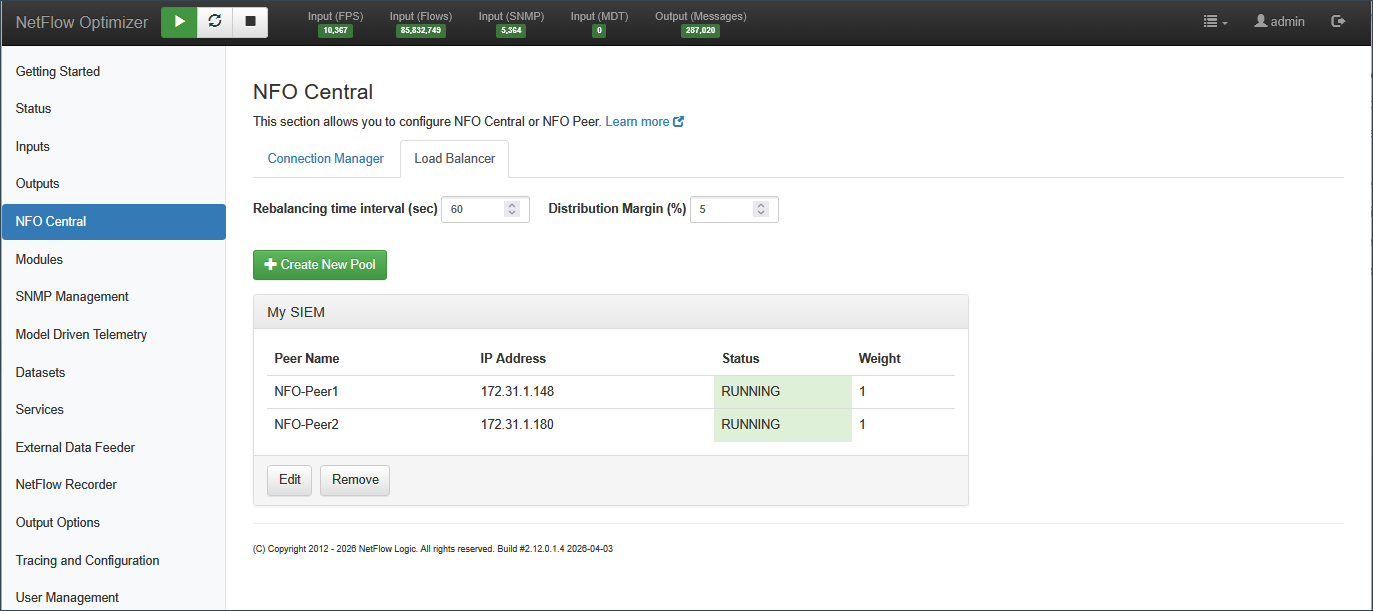
Rebalancing time interval (sec) controls how frequently NFO Central monitors the input packet rate per device to determine whether exporters should be shifted between peer nodes. The default is 90 seconds.
Distribution Margin (%) sets the maximum percentage points a peer can exceed its weighted share before NFO Central considers it over-allocated and triggers rebalancing. The default is 5.
For optimal performance, set the rebalancing interval to three times the data collection interval used in your logic modules (such as those configured for aggregation or volume reduction). This ensures the rebalancing logic has sufficient historical data to make informed distribution decisions without reacting to transient traffic spikes, providing the optimal balance between responsive load shifting and reliable data aggregation.
Step 7: Verify Traffic Distribution
Return to the Connection Manager tab and review the Connected Peers table. Confirm that Input Rate and Processing Rate are non-zero for all peers in the pool and that Total Drops is not growing. A growing drop count on any peer indicates it is approaching capacity; consider adding peers to the pool or adjusting peer weights.
SNMP Device Assignment
When SNMP polling is configured in a pool, NFO Central assigns each discovered device to exactly one peer in that pool. Each peer polls only the devices assigned to it rather than the whole inventory, so polling load is spread across the pool and each device is polled once.
How Devices Are Assigned
A device that sends NetFlow is polled by the peer that receives its NetFlow. This keeps flow records and device metrics for the same device on the same peer, which is what allows that peer's SNMP service to supply interface names when its modules enrich those flows.
Devices that only respond to SNMP are spread by count. No peer is loaded beyond its target share plus the pool's Distribution Margin, the same setting that governs flow distribution. See Configuring the Rebalancing Interval and Distribution Margin.
Assignments are sticky. A peer keeps the devices it is already polling unless keeping them would take it past that margin. Assignments therefore stay stable instead of changing on every recalculation, and device counts across peers are often uneven. That is expected and not a sign of a problem.
NFO Central sends each peer its assigned list and updates it when the pool membership or the device inventory changes.
Viewing Assignments
The Devices column in the Connected Peers table shows how many devices each peer is polling. To see which ones, open the three-dot menu on a peer's row and select View devices.
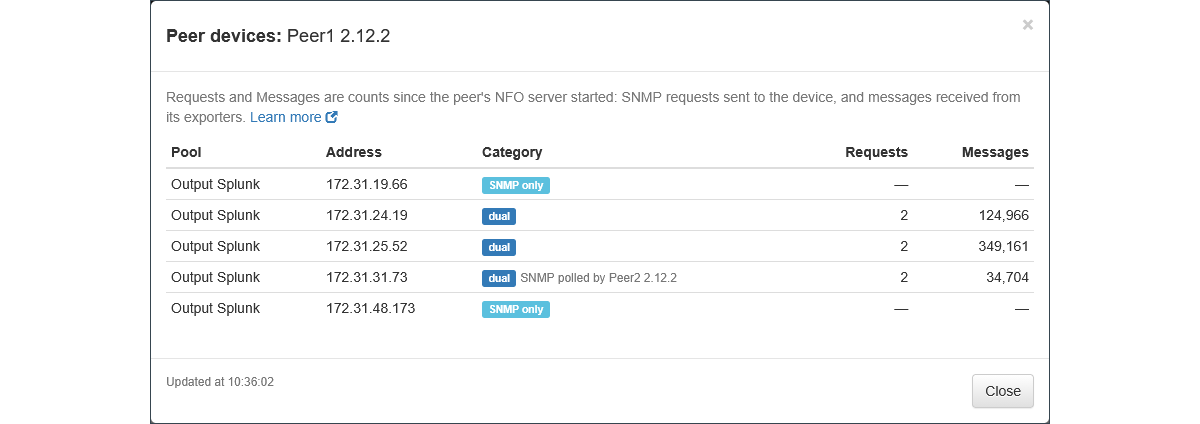
| Column | Description |
|---|---|
| Pool | The Load Balancer Pool the peer belongs to. |
| Address | The device's SNMP management address. |
| Category | SNMP only for a device that is polled but sends no flows, or dual for a device that both sends NetFlow and is polled. |
| Requests | SNMP requests this peer has sent to the device. |
| Messages | Messages this peer has received from the device's exporters. Shown as a dash for SNMP only devices, which have no exporters. |
Both counts are since the peer's NFO server last started, not since the device was assigned.
Changing a Pool Configuration
Initial setup is covered by Steps 1 through 7 above. This section covers what to do afterward: how to roll a pool back, how to make a routine configuration change, and how to validate a change against real traffic before it reaches production.
How NFO Central Tracks Configuration
NFO Central records which configuration snapshot it assigned to each peer. It does not monitor peers for changes made locally.
If you change the configuration directly on a peer, that change stays on that peer. NFO Central neither overwrites it nor applies it to the rest of the pool, and the pool continues running the snapshot that was assigned.
To make a local change the pool's configuration, import it from that peer and assign it to the pool. NFO Central then compares the new snapshot against what each peer was last assigned and pushes it to the peers that differ.
Rolling Back to a Previous Configuration
NFO Central keeps every configuration snapshot you import on the Configuration Management tab. Assigning an earlier snapshot to a pool returns every peer in that pool to that configuration.
This is the quickest way to recover from a configuration change that did not work out. Open the three-dot menu on the snapshot you want, assign it to the pool, and NFO Central pushes it to all of the pool's peers.
Rolling back restores the configuration, but any data the pool already sent while the unwanted configuration was active has been delivered. If a change could send output to the wrong destination, validate it on a staging instance first.
Making a Routine Configuration Change
For most changes, configure a peer directly and promote its configuration:
- Configure one peer with the change.
- Verify the result. The preview icon on each output shows the actual syslog or JSON that output is producing, which is the quickest way to check message format and field content.
- Import the configuration into NFO Central on the Configuration Management tab.
- Assign it to the pool. NFO Central pushes it to every peer in the pool.
If the result is wrong, assign the previous snapshot to the pool.
Using a Staging Instance
A staging instance is an NFO instance connected to NFO Central but not a member of any Load Balancer Pool. It gives you a durable place to author configuration and, because you can forward a slice of real traffic to it, a way to see what a configuration actually produces before it reaches production.
This is optional. It is worth the extra virtual machine when configurations change regularly, when a change could send output somewhere it should not go, or when validating against real flows matters more than inspecting a preview. Licensing is measured on NFO Central, so the only cost is the virtual machine itself.
Setting Up a Staging Instance
-
Deploy an NFO instance and connect it to NFO Central as described in Step 2. Do not add it to any Load Balancer Pool.
-
Configure it with inputs, modules, and outputs, exactly as you would a production peer.
-
Point its outputs at a disposable destination, such as a test index, a test topic, or a file on disk. Test traffic will flow through these outputs, and sending it to production destinations would duplicate events that the pool is already producing.
-
Forward test traffic to it. On NFO Central, add a Repeater output targeting the staging instance, with a filter selecting a small number of exporters.
-
Verify the output. Inspect what arrives at the test destination, and use the preview icon on each output to check message format and field content.
-
Switch the outputs to the production destinations.
Change the destinations before importingNothing marks a node as staging, so nothing redirects or suppresses its outputs automatically. If you import the configuration while the outputs still point at the test destination, every peer in the pool inherits that destination and production output goes there silently. Make this change part of the import, not a separate task.
-
Import the configuration into NFO Central on the Configuration Management tab.
-
Assign the configuration to the pool.
-
Disable the Repeater output on NFO Central so test traffic stops being sent to the staging instance.
Changing a Configuration Using the Staging Instance
Once the staging instance exists, each subsequent change follows the same loop:
- Set the staging instance outputs to the test destination.
- Re-enable the Repeater output on NFO Central.
- Make the change on the staging instance and verify the output.
- Switch the outputs back to the production destinations. This is the step most often missed on repeat changes; see the warning above.
- Import the configuration and assign it to the pool.
- Disable the Repeater output on NFO Central.
Stopping Test Traffic
Disable the Repeater output on NFO Central. This stops the traffic at its source.
Disabling the input or the output on the staging instance instead leaves NFO Central sending UDP packets that are then discarded, which wastes bandwidth and leaves what looks like a working path for anyone inspecting the configuration later. Stopping the staging node altogether works but makes it indistinguishable from a node that has failed, which is unhelpful for an instance you intend to keep for future changes.