Licensing
NFO requires a valid license to ingest, process, and export data. You can deploy NetFlow Optimizer as a standalone instance or as a cluster with an NFO License Manager coordinating usage across multiple peers.
Applying a License
To apply a new license, navigate to Platform Admin → Licensing in the NFO web interface.
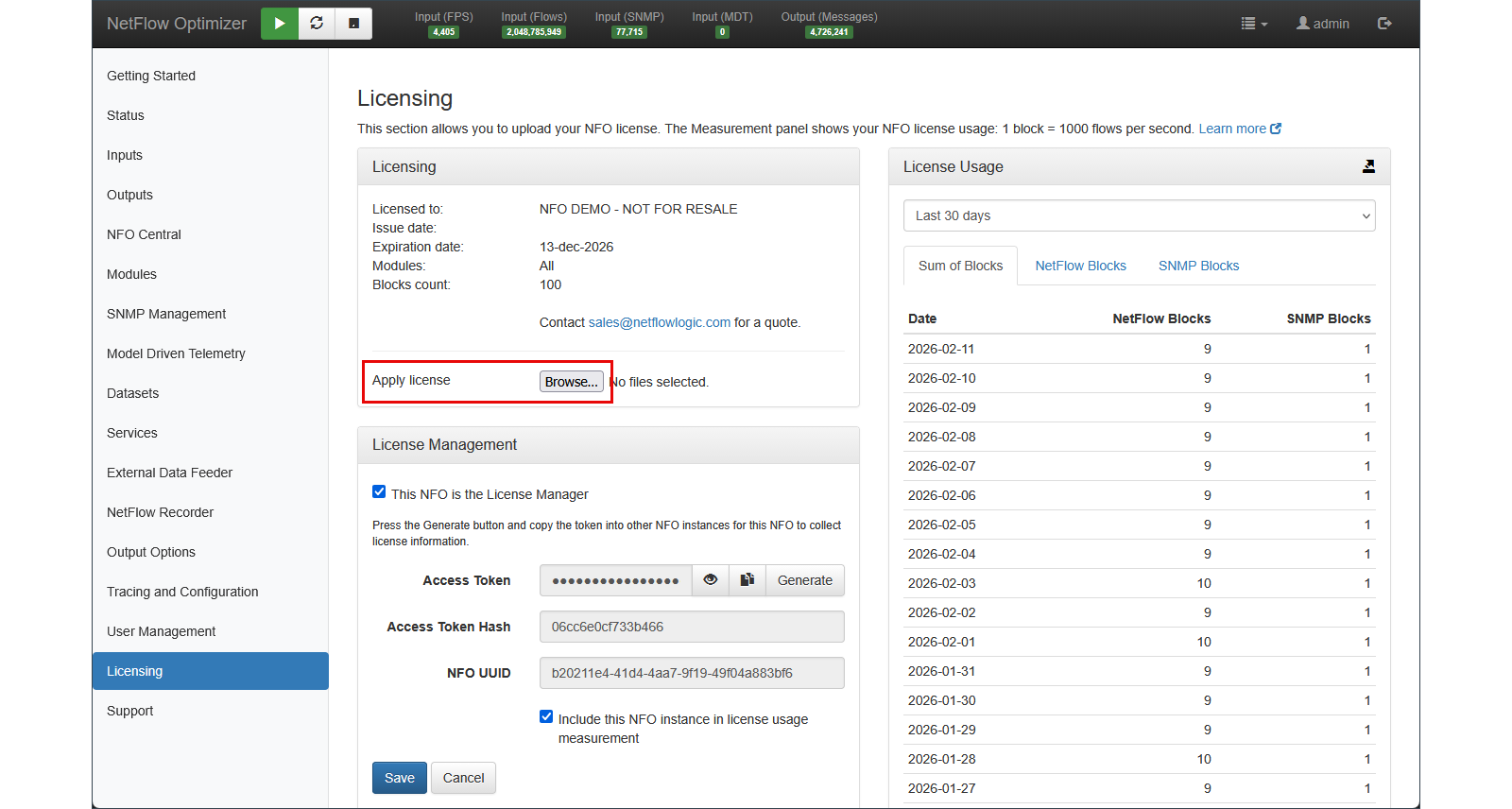
- Click the
Browse...button. - Select the license file.
- Click OK to apply the license.
License Measurement
NFO licenses are measured in blocks. Starting with version 2.12.1, NetFlow and SNMP Pro usage are measured and licensed separately.
| Component | Block Unit |
|---|---|
NetFlow (netflow_blocks) | 1 block = 1,000 flows per second |
SNMP Pro (snmp_pro_blocks) | 1 block = 50 devices |
Prior to version 2.12.1, a single blocks=n parameter covered all usage. License files issued from 2.12.1 onward use the split format: netflow_blocks=n;snmp_pro_blocks=m.
SNMP Pro Licensing
SNMP Pro is a separately licensed tier that enables advanced SNMP capabilities beyond basic SNMPv2c polling. The following features require an SNMP Pro license:
| Feature | Description |
|---|---|
| SNMPv3 | Encrypted, authenticated polling — required for security-conscious and compliance environments |
| Auto-Discovery | Automated IP range scanning to find and classify devices without manual entry |
| Device Grouping | Multi-group inheritance and layered monitoring profiles |
| Custom OID Sets | User-defined MIBs and custom OID sets beyond standard MIB-II |
For a full breakdown of SNMP Basic vs. SNMP Pro capabilities, see SNMP Basic and SNMP Pro.
SNMP Pro Detection Alert
Starting with version 2.12.1, NFO detects SNMP Pro feature usage at runtime. If your current license does not include SNMP Pro and usage is detected, NFO logs the following alert:
2026-04-25 17:05:30 ALERT #500 SNMP Pro is now a licensed feature as of version 2.12.1.
Usage has been detected on your system. Please contact sales to add SNMP Pro to your
license at your next renewal or at your convenience.
This alert is informational — SNMP Pro features continue to function while you arrange licensing. Contact NetFlow Logic Sales to add SNMP Pro to your license.
License Usage
The Licensing section displays current usage measured against your licensed block counts.
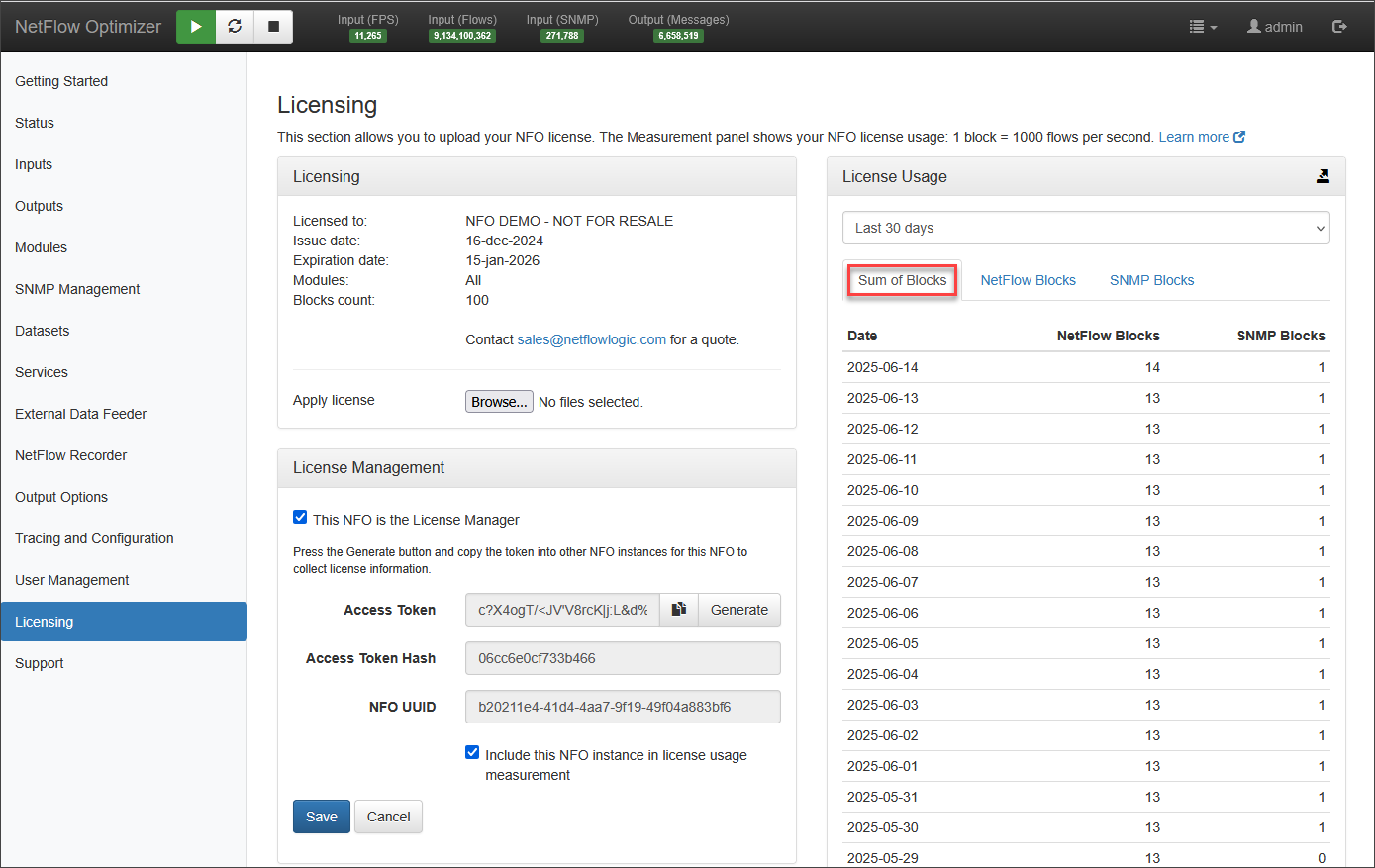
License usage has three tabs:
- Sum of Blocks — aggregated usage across all NFO peers, covering both NetFlow and SNMP Pro blocks.
- NetFlow Blocks — detailed NetFlow usage broken down by NFO peer.
- SNMP Blocks — SNMP Pro polling usage per NFO peer.
Detailed per-NFO usage data can be downloaded in CSV format using the Export license usage link.
To learn more about NFO licenses and permitted overages, see the End User License Agreement.
NFO License Manager Configuration
One of your NFO instances can be designated as a License Manager to centrally collect and monitor usage across a distributed deployment.
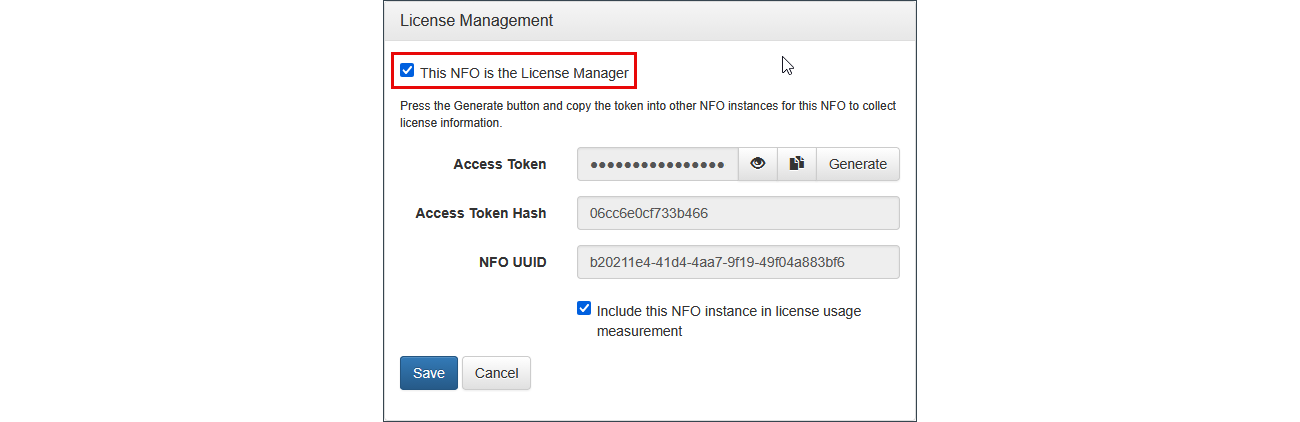
On the License Manager instance:
- On the License Management panel, select the checkbox This NFO is the License Manager.
- Optionally deselect Include this NFO license usage along with other NFO instances if the License Manager's own usage should not be counted — for example, when NFO is configured as a Repeater.
- Click Save.
- Click Generate and copy the token — you will enter this token on each NFO Peer instance.
- The Access Token is always visible after generation and can be copied at any time. Use the Access Token Hash field to compare tokens with peer instances.
- The Measurement panel on the right shows a daily license usage summary across all NFO peers. Detailed per-NFO data can be downloaded in CSV format using the Export license usage link.
NFO License Manager checks for license usage violations every midnight, and also when the Tomcat service or NFO server is started or restarted.
NFO License Peer Configuration
All NFO instances other than the License Manager are configured as Peers.
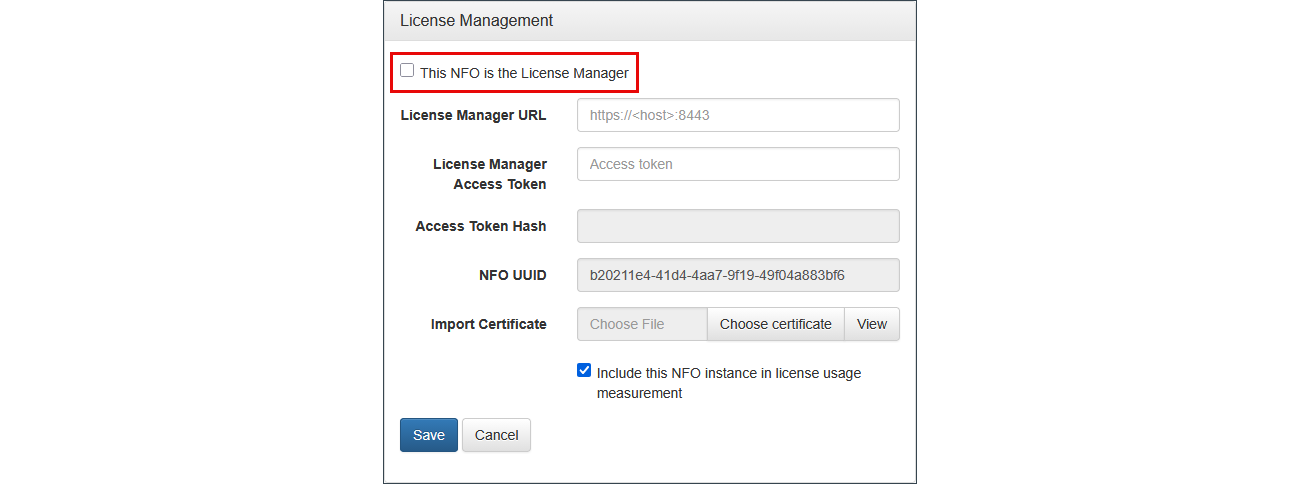
On each Peer instance:
- Ensure the This NFO is the License Manager checkbox is unchecked.
- Enter the NFO License Manager URL in
<host>:<port>format — for example,nfo-manager-host:8443or<nfo-ip-address>:8443. - Enter the License Manager access token.
- Click Save. After saving, the Peer verifies its connection to the License Manager, requests its license, and begins sending usage data.
- For a secure connection, the Peer requires the License Manager's SSL/HTTPS certificate. This certificate is stored automatically on first connection. If the License Manager's certificate is later updated, it must be manually imported:
- Navigate to the NFO License Manager web interface.
- Click the lock icon in the browser address bar and access the certificate details.
- Export the certificate chain in Base-64 encoded or X.509 format.
- Return to the NFO Peer → Licensing section.
- Click Choose certificate and select the exported file. NFO supports DER-encoded, Base64-encoded, and PKCS#7 X.509 certificates.
- Click View to confirm the installed certificate.
- The certificate is stored at
${nfo_home}/tomcat/data/license_manager_truststore.jks.
- The access token is not shown after saving — use the Access Token Hash field to compare with the License Manager token.
- The Measurement panel on the right shows license usage for this Peer only.
NFO Peers check and update their license every midnight, and send usage data to the License Manager at the same time.